How to Set Up Facebook Pixel and Conversions API (CAPI) in 2026: Server-Side Tracking Guide
If you are running Facebook Ads in 2026 without server-side tracking, you are flying blind. Browser-based tracking alone misses 20-35% of conversion events thanks to ad blockers, ITP restrictions, and shortened cookie lifespans. The fix is a dual setup: Facebook Pixel for client-side events plus Meta Conversions API (CAPI) for server-side redundancy.
This facebook pixel setup 2026 guide walks you through the entire process — from creating your dataset in Events Manager to configuring CAPI, implementing deduplication, and maximizing your Event Match Quality score. Whether you use Google Tag Manager Server-Side, a partner integration like Shopify, or the direct API approach, you will have accurate tracking running by the end.
The guide is built for media buyers, e-commerce advertisers, and performance marketers who need reliable attribution data to optimize campaigns profitably.
Why You Need Both Facebook Pixel and Conversions API in 2026
The Facebook Pixel alone used to be enough. You dropped a JavaScript snippet on your site, it fired events in the browser, and Meta received clean conversion data. That era is over.
Three forces have degraded browser-side tracking:
- Ad blockers prevent the Pixel from loading on 25-40% of desktop sessions
- Safari's Intelligent Tracking Prevention (ITP) caps first-party cookies at 7 days (or 24 hours for some), breaking attribution windows
- Chrome's Privacy Sandbox continues tightening third-party cookie access, even after delaying full deprecation
The Conversions API solves this by sending event data directly from your server to Meta's servers. No browser involvement means no ad blocker interference, no cookie restrictions, and no data loss from page unloads or slow connections.
But CAPI alone is not the answer either. Server-side events lack some browser-level signals (like fbclid parameters captured in real-time). The optimal setup is both running together with deduplication — the Pixel catches what it can, CAPI fills the gaps, and Meta merges them using matching event IDs.
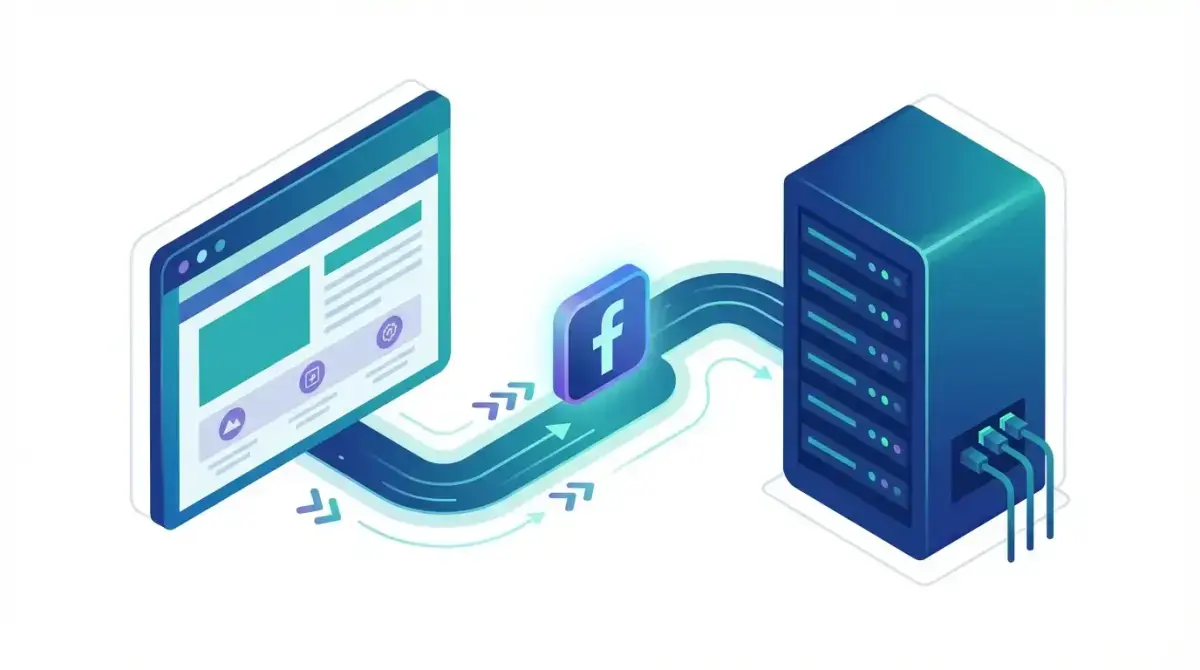
 How Pixel and CAPI work together: browser-side and server-side events are deduplicated by Meta using matching event IDs
The Real-World Impact on Campaign Performance
Running both Pixel and CAPI typically improves:
- Attribution accuracy by 15-30% (more conversions correctly attributed to ads)
- Custom audience match rates by 20%+ (better lookalike seed data)
- Cost per acquisition by 10-20% (Meta's algorithm receives stronger signals)
These are not theoretical numbers. They reflect consistent patterns reported by advertisers who migrated from Pixel-only to dual tracking setups. Keep in mind that your absolute baseline still depends heavily on the market you buy in — the same setup delivers very different CPAs at US versus Eastern-European auction prices (see our Facebook CPM benchmarks by country).
Step 1: Create Your Dataset in Meta Events Manager
Before configuring either Pixel or CAPI, you need a dataset in Meta Events Manager. This is the container that holds all your event data — regardless of whether it arrives via browser or server.
How to Create Your Dataset
- Go to Meta Events Manager
- Click Connect Data Sources (green button, top left)
- Select Web as the data source type
- Name your dataset (use your domain name for clarity, e.g., "yourstore.com")
- Click Create
Meta will generate a Pixel ID (also called Dataset ID). Save this — you need it for both Pixel installation and CAPI configuration.
Generate Your Access Token for CAPI
While in Events Manager:
- Navigate to Settings for your dataset
- Scroll to Conversions API section
- Click Generate Access Token
- Copy and store securely (you will not see it again without regenerating)
This token authenticates your server when sending events to Meta. Treat it like a password — never expose it in client-side code.
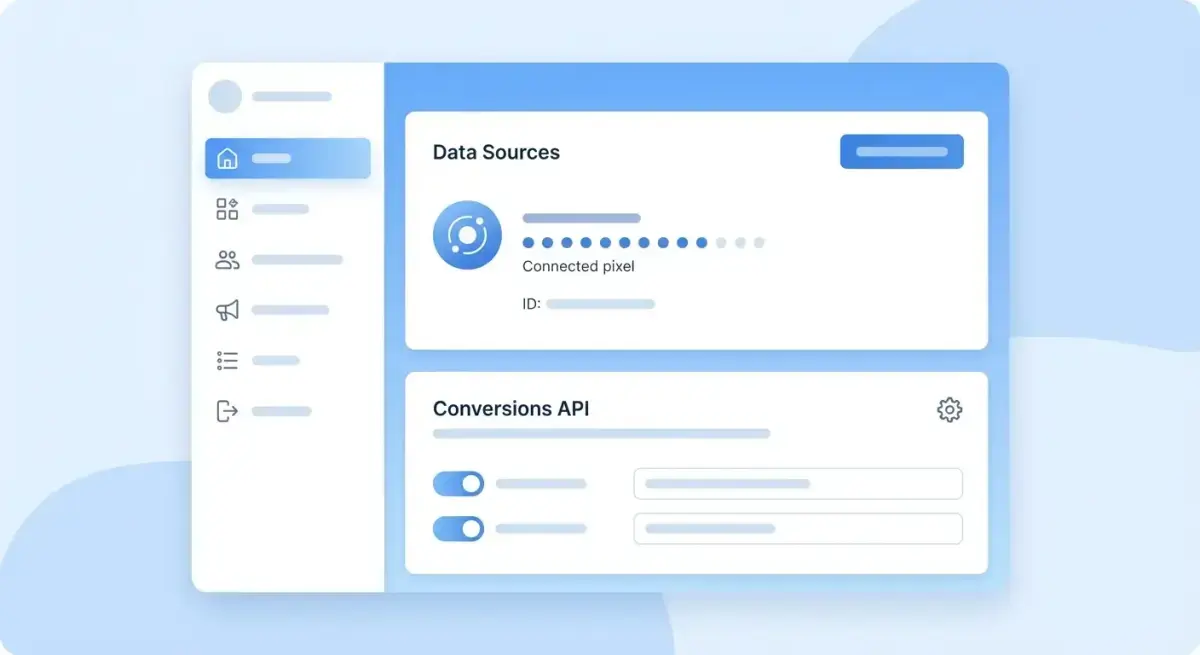 Events Manager is your central hub for managing Pixel and CAPI data sources
Step 2: Install Facebook Pixel on Your Website
The Pixel is still the foundation of your tracking stack. Even with CAPI running, it captures valuable browser-side signals like fbclid, fbp cookies, and real-time page interaction data.
Manual Installation (Base Code)
Add this snippet to the <head> section of every page on your site:
<!-- Meta Pixel Code -->
<script>
!function(f,b,e,v,n,t,s)
{if(f.fbq)return;n=f.fbq=function(){n.callMethod?
n.callMethod.apply(n,arguments):n.queue.push(arguments)};
if(!f._fbq)f._fbq=n;n.push=n;n.loaded=!0;n.version='2.0';
n.queue=[];t=b.createElement(e);t.async=!0;
t.src=v;s=b.getElementsByTagName(e)[0];
s.parentNode.insertBefore(t,s)}(window, document,'script',
'https://connect.facebook.net/en_US/fbevents.js');
fbq('init', 'YOUR_PIXEL_ID');
fbq('track', 'PageView');
</script>
<noscript><img height="1" width="1" style="display:none"
src="https://www.facebook.com/tr?id=YOUR_PIXEL_ID&ev=PageView&noscript=1"/>
</noscript>
<!-- End Meta Pixel Code -->
Replace YOUR_PIXEL_ID with the dataset ID from Step 1.
Using Google Tag Manager (Client-Side)
If you prefer GTM:
- In GTM, create a new Tag → select Custom HTML
- Paste the Pixel base code above
- Set trigger to All Pages
- For conversion events, create additional tags that fire
fbq('track', 'Purchase', {value: X, currency: 'USD'})on the appropriate triggers - Publish the container
Platform-Specific Installation
Most e-commerce platforms have native Pixel integrations:
- Shopify: Settings → Customer Events → Add custom pixel (or use Meta's sales channel app)
- WooCommerce: Use a plugin like "Facebook for WooCommerce" or "PixelYourSite"
- WordPress: Use "PixelYourSite" or insert manually via theme header
- Magento: Meta's official extension or GTM
Verifying Pixel Installation
Use the Meta Pixel Helper Chrome extension to verify:
- Base Pixel fires on all pages (PageView event)
- Conversion events fire on the correct pages
- No duplicate Pixel IDs on the same page
- Parameters (value, currency, content_ids) are populated correctly
Step 3: Set Up Meta Conversions API (CAPI)
This is where server-side tracking comes in. You have four main approaches, ranked from easiest to most flexible:
Option A: Partner Integration (Easiest)
If your platform supports it, this is the fastest path:
Shopify:
- Install the Meta sales channel app
- Connect your Facebook account and Pixel
- Enable "Conversions API" in the app settings
- Shopify automatically sends server events for key actions (Purchase, AddToCart, InitiateCheckout, ViewContent)
WooCommerce:
- Install "Facebook for WooCommerce" plugin
- Connect your account and authorize
- The plugin sends CAPI events automatically for standard e-commerce actions
Advantage: Zero code, fast setup, automatic deduplication Limitation: Less control over which events and parameters are sent
Option B: Meta Conversions API Gateway
Meta offers a managed server-side solution:
- In Events Manager, go to Settings → Conversions API → Set up via Gateway
- Choose your hosting provider (AWS is most common)
- Follow the guided deployment — Meta provisions a server instance for you
- The Gateway acts as a proxy: your Pixel events are mirrored server-side automatically
Advantage: No code changes needed if Pixel is already installed Limitation: Hosting costs ($40-100/month for AWS), limited customization
Option C: Google Tag Manager Server-Side
This is the most popular approach for custom setups:
- Set up a GTM Server-Side container (requires a cloud server — Google Cloud, AWS, or Stape.io as a managed option)
- Create a GA4 client in the server container to receive incoming requests
- Add the Facebook CAPI tag (available as a community template in GTM Gallery):
- Enter your Pixel ID and Access Token
- Map event names (GA4 events → Meta standard events)
- Configure customer parameters (email, phone, address → hashed automatically)
- Set up the transport: your client-side GTM sends events to your server GTM endpoint, which then forwards to Meta
Key parameters to pass in the CAPI tag:
| Parameter | Description | Impact on EMQ |
|---|---|---|
em | Email (hashed SHA256) | High |
ph | Phone (hashed SHA256) | High |
fn | First name (hashed) | Medium |
ln | Last name (hashed) | Medium |
ct | City (hashed) | Low |
st | State (hashed) | Low |
zp | Zip code (hashed) | Low |
country | Country code (hashed) | Low |
fbp | Facebook browser ID cookie | High |
fbc | Facebook click ID cookie | High |
client_ip_address | User's IP | Medium |
client_user_agent | User's browser agent | Medium |
Option D: Direct API Implementation
For maximum control, send events directly via HTTP:
curl -X POST \
  "https://graph.facebook.com/v26.0/YOUR_PIXEL_ID/events" \
  -H "Content-Type: application/json" \
  -d '{
    "data": [{
      "event_name": "Purchase",
      "event_time": 1711388400,
      "event_id": "event_abc123",
      "event_source_url": "https://yourstore.com/thank-you",
      "action_source": "website",
      "user_data": {
        "em": ["309a0a5c3e211326ae75ca18196d301a9bdbd1a882a4d2569511033da23f0abd"],
        "ph": ["254aa248acb47dd654ca3ea53f48c2c26d641d23d7e2e93a1ec56258df7674c4"],
        "client_ip_address": "203.0.113.1",
        "client_user_agent": "Mozilla/5.0...",
        "fbp": "fb.1.1558571054389.1098115397",
        "fbc": "fb.1.1554763741205.AbCdEfGhIjKlMnOpQrStUvWxYz1234567890"
      },
      "custom_data": {
        "value": 49.99,
        "currency": "USD",
        "content_ids": ["product_123"],
        "content_type": "product"
      }
    }],
    "access_token": "YOUR_ACCESS_TOKEN"
  }'
Critical rules for direct implementation:
- Hash all PII (email, phone, name, address) using SHA256 before sending
- Lowercase and trim whitespace before hashing
- Send
event_timeas Unix timestamp (must be within 7 days) - Include
event_idfor deduplication (same ID as your Pixel event) - Set
action_sourceto"website"for web events - Pin a current Graph API version in your endpoint (v26.0 as of August 2026) and bump it during maintenance — Meta retires versions roughly two years after release, and requests to a sunset version start failing
Step 4: Implement Event Deduplication
Deduplication is arguably the most critical step. Without it, Meta counts each conversion twice (once from Pixel, once from CAPI), inflating your numbers and confusing the optimization algorithm.
How Deduplication Works
Meta deduplicates based on two matching fields:
- event_name — must be identical (e.g., "Purchase" in both)
- event_id — a unique identifier you generate and pass to both Pixel and CAPI
When Meta receives two events with the same event_name and event_id within a 48-hour window, it keeps only one.
Implementation Pattern
Client-side (Pixel):
// Generate a unique event ID
const eventId = 'evt_' + Date.now() + '_' + Math.random().toString(36).substr(2, 9);

// Fire Pixel event with event ID
fbq('track', 'Purchase', {
  value: 49.99,
  currency: 'USD',
  content_ids: ['product_123']
}, {eventID: eventId});

// Send the same eventId to your server (via AJAX, data attribute, etc.)
fetch('/api/track', {
  method: 'POST',
  body: JSON.stringify({event_id: eventId, event: 'Purchase', value: 49.99})
});
Server-side (CAPI):
# Your server receives the event_id from the client
# and includes it in the CAPI request
payload = {
    "data": [{
        "event_name": "Purchase",
        "event_id": event_id,  # Same ID from the Pixel fire
        "event_time": int(time.time()),
        # ... user_data, custom_data
    }]
}
Common Deduplication Mistakes
- Different event names: "Purchase" on Pixel vs "purchase" on CAPI — Meta treats these as different events. Standardize casing.
- Missing event_id on one side: If Pixel fires without an event_id, deduplication cannot work. Always include it.
- Time gap too large: Events must arrive within 48 hours of each other. Server delays beyond this window cause duplicates.
- Using transaction IDs incorrectly: Your order ID can work as an event_id, but make sure it is passed to both Pixel and CAPI identically.
Verifying Deduplication
In Events Manager:
- Go to your dataset → Overview
- Check the Event deduplication card
- Meta shows the percentage of events being deduplicated
- Target: 80-95% deduplication rate for events you send through both channels
- Below 50% suggests a configuration issue — check event_id matching
Step 5: Configure Standard and Custom Events
Meta's algorithm optimizes best when it receives standardized event names with rich parameters.
Standard Events to Implement
For most advertisers, these are the essential events:
| Event | When to Fire | Key Parameters |
|---|---|---|
PageView | Every page load | — |
ViewContent | Product/service page viewed | content_ids, content_type, value, currency |
AddToCart | Item added to cart | content_ids, content_type, value, currency |
InitiateCheckout | Checkout process started | value, currency, num_items |
AddPaymentInfo | Payment method entered | value, currency |
Purchase | Transaction completed | value, currency, content_ids, content_type, order_id |
Lead | Form submitted | value, currency |
CompleteRegistration | Account created | value, currency |
Custom Events
For actions not covered by standard events:
// Client-side
fbq('trackCustom', 'PricingPageView', {plan_type: 'pro'});

// Server-side (in CAPI payload)
{
  "event_name": "PricingPageView",
  "custom_data": {"plan_type": "pro"}
}
Use custom events sparingly. Meta's algorithm understands standard events natively — custom events require more data before Meta can optimize for them.
iOS Events: No More 8-Event Ranking
If you set up tracking before mid-2025, you may remember Aggregated Event Measurement — the Events Manager screen where you ranked 8 prioritized web events per domain for iOS 14.5+ users. That configuration is gone. Meta removed the manual 8-event ranking and the standalone AEM interface; all eligible web events are now aggregated automatically, with no event cap and no prioritization step.
What this means for your setup in 2026:
- Do not look for the "Aggregated Event Measurement" or "Configure Web Events" screens — they no longer exist in Events Manager.
- You no longer need to sacrifice secondary events (AddToCart, Lead) to stay under an iOS limit. Implement every event that matters to your funnel.
- Domain verification in Business Manager is still good hygiene, but it is no longer a gate for iOS event prioritization.
iOS signal loss still exists — ATT opt-outs are modeled rather than individually tracked — which is exactly why the CAPI half of this setup matters so much.
Once your tracking is dialed in, the next question becomes: what creatives should you run? Instead of guessing, see what is already working for top advertisers in your niche. Find winning ad creatives to run through your new tracking setup → Try Adligator free
How to Maximize Event Match Quality
Event Match Quality (EMQ) is Meta's score (1-10) that measures how well your server events can be matched to Facebook accounts. Higher EMQ = better attribution, better audiences, better optimization.
What Drives EMQ Score
Meta weighs customer information parameters by matching power:
Tier 1 (Highest Impact):
- Email address (
em) - Phone number (
ph) - Facebook browser ID (
fbp) - Facebook click ID (
fbc)
Tier 2 (Medium Impact):
- Client IP address
- Client user agent
- First name, last name
Tier 3 (Lower Impact):
- City, state, zip code, country
- Date of birth, gender
- External ID
Practical Steps to Improve EMQ
- Capture
_fbpand_fbccookies server-side: These first-party cookies are set by the Pixel. Read them on your server and include in CAPI requests. - Hash and send email at every opportunity: Even before purchase — newsletter signups, account creation, contact forms.
- Use a custom domain for your tracking server: If using GTM Server-Side, configure a subdomain (e.g.,
track.yourstore.com) so fbp/fbc cookies are first-party and persist longer. - Send phone number when available: Even partial matches boost EMQ.
- Include IP and User Agent on every event: These are easy to capture server-side and significantly improve match rates.
 Event Match Quality scores range from 1-10 — aim for 6+ by sending rich customer parameters
Benchmarks
- EMQ 1-3: Poor — you are likely sending minimal customer data. Add more parameters.
- EMQ 4-5: Acceptable — basic matching is working, but there is room for improvement.
- EMQ 6-7: Good — most events are matching to Facebook accounts.
- EMQ 8-10: Excellent — you are sending rich, high-quality customer data.
Most advertisers land between 5-7 after proper CAPI setup. Getting above 8 typically requires sending email + phone + fbp/fbc on the majority of events.
Testing and Debugging Your Setup
Do not assume your tracking works just because you configured it. Validate everything.
Using the Test Events Tool
- In Events Manager, go to your dataset → Test Events tab
- Copy the Test Event Code (looks like
TEST12345) - Add it to your CAPI requests:
{
  "data": [{ /* your event */ }],
  "test_event_code": "TEST12345",
  "access_token": "YOUR_TOKEN"
}
- Trigger an event on your site
- Check the Test Events tab — your event should appear within seconds
- Verify all parameters are received correctly
Debugging Checklist
| Check | How to Verify | Common Issue |
|---|---|---|
| Pixel fires on all pages | Meta Pixel Helper extension | GTM trigger misconfigured |
| CAPI events received | Test Events tab | Wrong access token or Pixel ID |
| Event names match | Compare Pixel Helper vs Events Manager | Casing mismatch ("Purchase" vs "purchase") |
| Deduplication working | Overview → Deduplication rate | Missing event_id on one side |
| EMQ score acceptable | Overview → Event Match Quality | Not sending enough customer parameters |
| Event timing correct | Check event_time in Test Events | Timezone or Unix timestamp errors |
| Parameters populated | Test Events → event details | Missing value, currency, or content_ids |
Common Errors and Fixes
Error: "Invalid parameter" in API response
- Check that all PII is SHA256 hashed (not Base64 or plain text)
- Verify email is lowercased and trimmed before hashing
Error: Events appear in Test Events but not Overview
- Test events are excluded from production reporting by design
- Remove the
test_event_codeparameter for production traffic
Error: Deduplication rate is 0%
- Confirm event_id values match exactly between Pixel and CAPI
- Ensure both events share the same event_name (case-sensitive)
Error: EMQ score stuck at 1-2
- You are likely only sending IP + user agent
- Add fbp, fbc cookies from the browser, and hash + send email when available
Reading Your Numbers After the March 2026 Attribution Change
One more thing before you trust your dashboards. On March 3, 2026, Meta changed how conversions are classified — and if you verify your new tracking setup against pre-March benchmarks, the comparison will mislead you.
What changed:
- Click-through attribution now counts only genuine link clicks — a click that actually sends the user to your website, app, or lead form. Likes, shares, saves, and comments no longer qualify as "clicks" for attribution.
- Those social interactions moved to a new "engage-through" bucket, which replaced the old engaged-view attribution (previously: a video viewed for at least 5 seconds followed by a conversion within a day).
The practical consequence: many advertisers saw click-through conversions dip after March 2026 with no real performance change. The conversions did not disappear — they were reclassified. Click-through plus engage-through combined should land close to your old click-through totals.
For verifying your Pixel + CAPI setup, this means two rules:
- Compare like with like. When checking whether CAPI increased attributed conversions, compare post-March data against post-March data, or sum click-through + engage-through before comparing across the boundary.
- Decide how you treat engage-through conversions. A conversion after a like is a weaker intent signal than one after a link click. Many buyers now report click-through as the primary KPI and monitor engage-through separately — how you weigh them belongs in your attribution and ROAS measurement strategy.
Nothing about this changes your implementation — events, deduplication, and EMQ work exactly the same. It changes how the results are labeled in Ads Manager.
What to Do After Setting Up Tracking: Find Winning Creatives
With accurate tracking in place, your next bottleneck is creative performance. You know exactly which ads convert — but what creatives should you test next?
This is where competitive intelligence becomes essential. Instead of guessing at ad concepts, you can study what is already working at scale in your niche.
The manual approach: Browse Meta Ad Library, search for competitor pages, scroll through their active ads. It works for occasional research but breaks down when you need to:
- Monitor multiple competitors consistently
- Filter by ad format, platform, or run duration
- Identify longevity signals (ads running 30+ days are likely profitable)
- Track creative trends across your entire vertical
The scalable approach: Use a dedicated ad intelligence tool like Adligator to search across the entire Meta ad ecosystem. Filter by GEO, language, platform, ad format, days active, and CTA type. Find the creatives that have been running longest — those are the proven winners worth studying.
 Once your tracking is dialed in, use Adligator to find the winning creatives worth testing in your campaigns
The combination of accurate tracking (so you can measure what works) and competitive intelligence (so you can find what to test) is how top media buyers scale profitably.
Advanced Configuration: Server-Side Best Practices
Once your basic setup is running, these optimizations will improve data quality further.
Use a Custom Subdomain for Your Tracking Server
If using GTM Server-Side or a custom CAPI implementation:
- Create a CNAME record:
track.yourstore.com→ your server container domain - Configure your GTM Server-Side container to use this subdomain
- Update Pixel loading to use the custom endpoint
Why this matters: Cookies set from your own subdomain are treated as first-party, surviving ITP restrictions and lasting the full 7+ days instead of being capped at 24 hours.
Implement Consent Mode
For GDPR/CCPA compliance:
// Before Pixel loads
gtag('consent', 'default', {
  'ad_storage': 'denied',
  'analytics_storage': 'denied'
});

// After user grants consent
gtag('consent', 'update', {
  'ad_storage': 'granted',
  'analytics_storage': 'granted'
});
When consent is denied, Meta receives events without PII — it can still use aggregated modeling to partially recover signal. This is better than blocking events entirely.
Set Up Automatic Event Enhancement
In Events Manager → Settings → Automatic Event Enhancement:
- Enable Automatic Advanced Matching — Meta extracts and hashes form field data automatically
- Enable Automatic Events — Meta detects and fires common events (button clicks, form submits) without manual setup
- Review detected events and disable any false positives
These features supplement your manual setup but should not replace it. They catch edge cases where your primary tracking misses events.
Monitor Data Quality Regularly
Set a recurring weekly check:
- Open Events Manager → Overview
- Review event volume trends (sudden drops = tracking issues)
- Check deduplication rates (should stay 80-95%)
- Monitor EMQ scores (investigate any drops)
- Compare server events vs browser events ratio (should be roughly equal if both are working)
FAQ
Do I need both Facebook Pixel and Conversions API?
Yes. Meta recommends running both simultaneously for redundant event coverage. The Pixel captures browser-side events while CAPI sends server-side events, and Meta deduplicates them using event IDs. This dual setup maximizes Event Match Quality and gives Meta's algorithm the strongest optimization signals.
What is Event Match Quality and why does it matter?
Event Match Quality (EMQ) is Meta's 1-10 score that measures how well your server events can be matched to Facebook user accounts. Higher EMQ means better attribution, more accurate custom audiences, and stronger optimization signals. Send parameters like email, phone, fbp, fbc, IP address, and user agent to improve your score.
Can I set up Conversions API without Google Tag Manager?
Yes. You can use partner integrations (Shopify, WooCommerce, WordPress plugins), the Meta Conversions API Gateway, or direct API implementation. GTM Server-Side is just one of several methods — choose based on your tech stack and team capabilities.
How do I test if my Conversions API events are working?
Use the Test Events tab in Meta Events Manager. Generate a test event code, add it to your CAPI requests as test_event_code, then trigger events on your site. Events will appear in the Test Events tab within seconds if configured correctly. Also check the Overview tab for event match quality scores and deduplication rates.
What happens if I send duplicate events from both Pixel and CAPI?
Meta automatically deduplicates events that share the same event_id and event_name. If you forget to include event IDs, Meta may count both events separately, inflating your conversion numbers and confusing the optimization algorithm. Always implement deduplication by passing identical event_id values in both Pixel and CAPI calls.
Can I set up CAPI without a developer?
Yes, in most cases. Partner integrations (Shopify's Meta sales channel, Facebook for WooCommerce) enable Conversions API with a few clicks and no code, and the Conversions API Gateway is a guided, no-code deployment. You only need developer help for GTM Server-Side customization or a direct API implementation.
Does CAPI improve iOS tracking?
Yes. Server-side events bypass ad blockers and Safari's short-lived cookies, and richer customer parameters improve matching for iOS users, so advertisers typically see meaningfully more attributed iOS conversions after adding CAPI. It does not restore full pre-ATT visibility — opted-out users are still modeled rather than individually tracked.
Conclusion
Setting up Facebook Pixel and Conversions API correctly in 2026 is not optional — it is the foundation of profitable Facebook advertising. Browser-side tracking alone loses too much data to ad blockers, ITP, and privacy changes. Server-side tracking via CAPI fills those gaps and gives Meta's optimization algorithm the signals it needs.
The key steps: create your dataset in Events Manager, install the Pixel, configure CAPI through your preferred method (partner integration, GTM Server-Side, Gateway, or direct API), implement deduplication with matching event IDs, and maximize Event Match Quality by sending rich customer parameters.
Once your tracking is accurate, the next lever is creative performance. Knowing which ads convert is only half the equation — you also need a pipeline of high-potential creatives to test.
Ready to find the winning creatives worth running through your new tracking setup? Try Adligator free
See what top advertisers are running right now
Sources consulted: Meta Business Help Center (facebook.com), Jon Loomer Digital (jonloomer.com), Dataslayer (dataslayer.ai), DigitalApplied (digitalapplied.com).
Related Reading
- Facebook Ads Attribution in 2026: CAPI, Server-Side Tracking, and iOS Privacy Solutions
- Facebook Ads Attribution in 2026: How to Measure True ROAS After iOS Privacy Changes
- Facebook Ads for Local Businesses: Targeting, Creative Strategy, and Campaign Setup Guide
- Facebook Dynamic Product Ads (DPA) Guide: Catalog Setup, Optimization, and Scaling for eCommerce (2026)
