The Analytics dashboard: read patterns, not ads
Geography, funnel destination, language mix, launch cadence, top copy and links, colour and media mix. The screen that has no equivalent inside Meta's native Ad Library.
Analytics is the screen with no equivalent inside Meta's native Ad Library, no equivalent on the FB Pages tab, and no equivalent at any of Adligator's competitors. Every other surface in the app shows you ads. Analytics shows you patterns. This article walks through what each panel does and how to read it.
If you have not created a Tracker yet, do that first — Analytics is always scoped to one. There is no "general analytics" view, by design. Patterns only mean something when they are about a specific advertiser you have chosen to watch.
How to open it
Step 1 — Open the Tracker
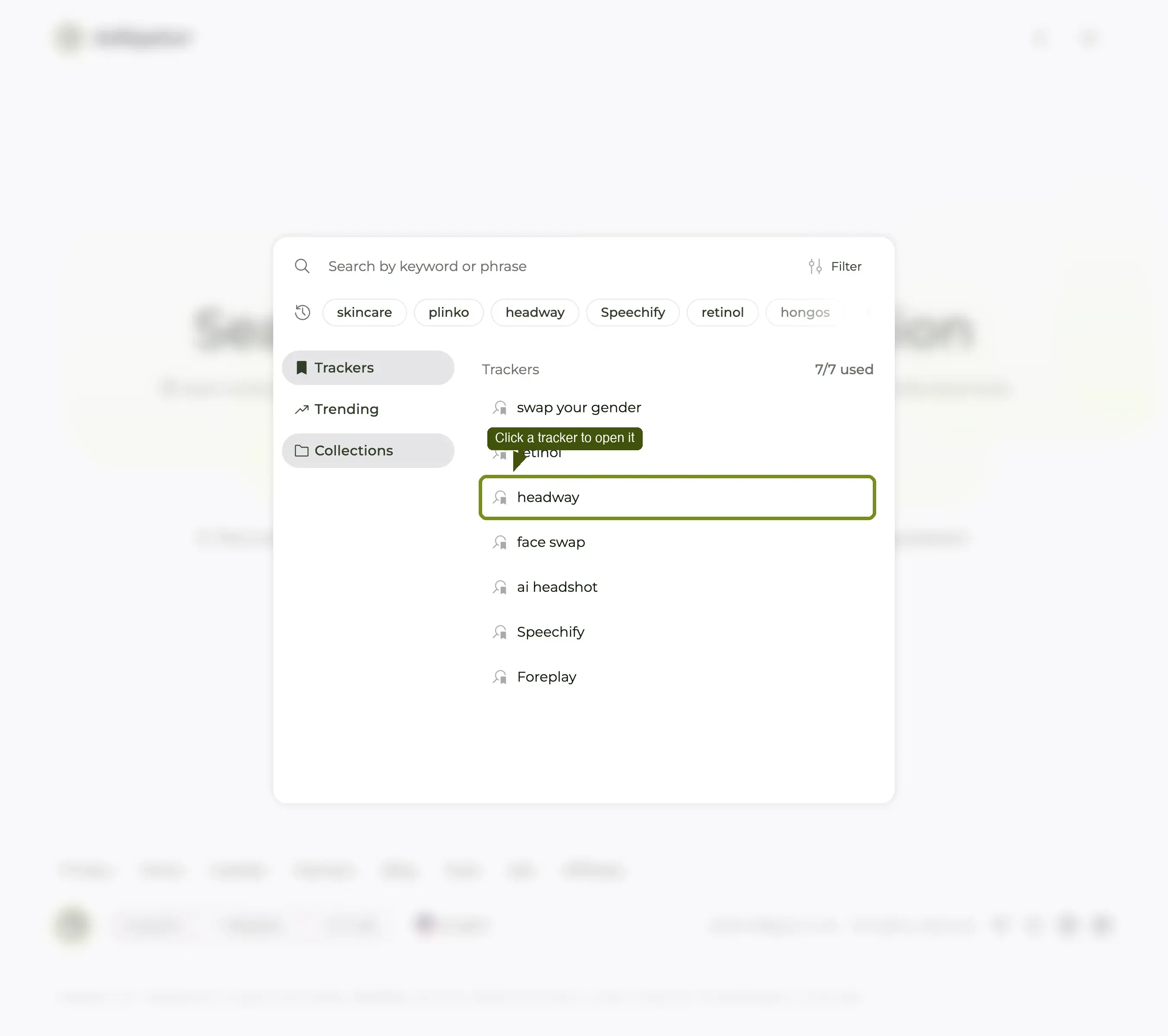
Click Trackers in the sidebar and click the card of the advertiser you want.
Step 2 — Switch to the Analytics tab
The tracker opens on Ad Results. Above the grid sit three tabs: Ad Results, Analytics, Partnerships. Click Analytics.
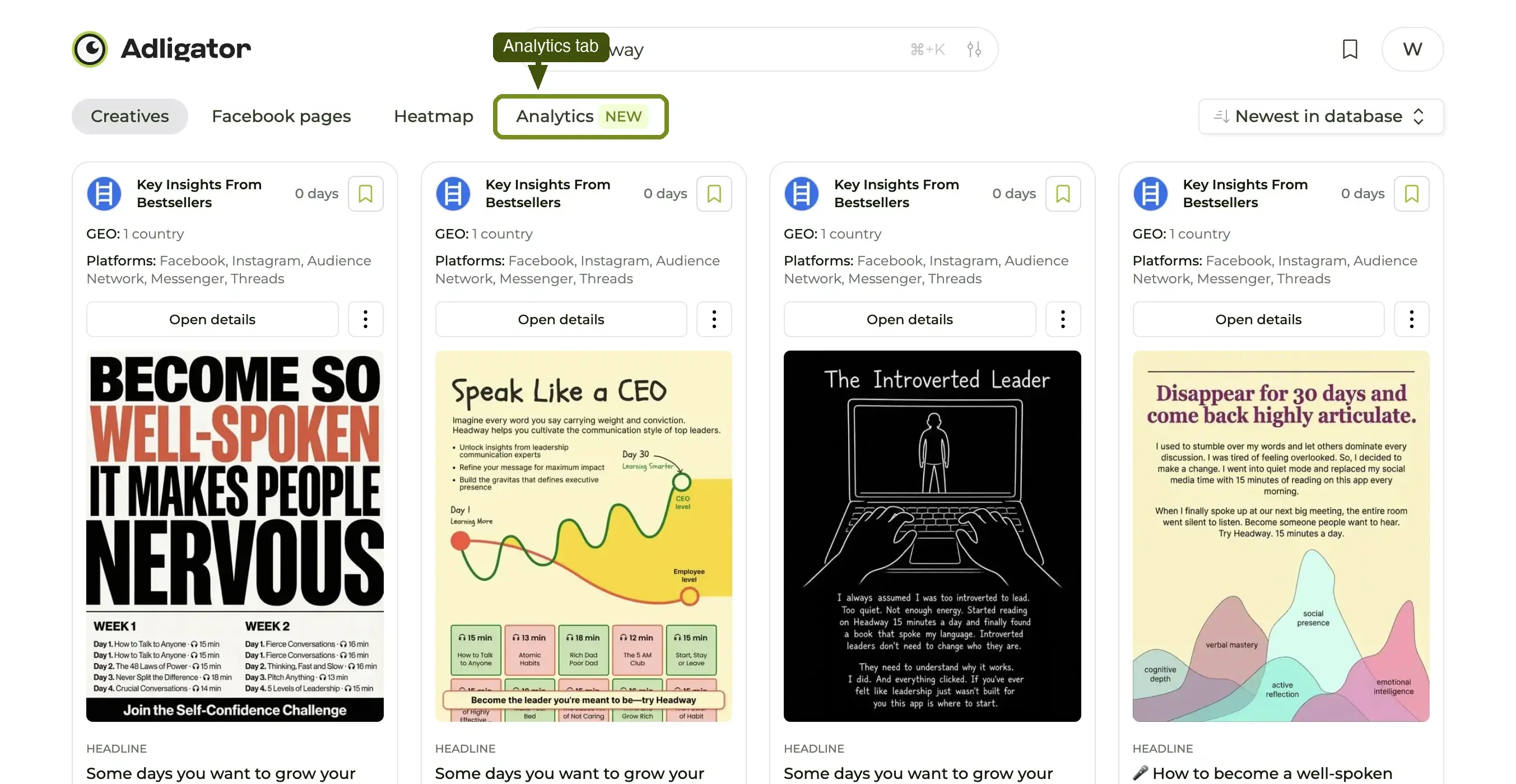
Give it ten to fifteen seconds on a large tracker. If it stays blank with a spinner, reload the tracker page and click the tab again.
Step 3 — Read the dashboard
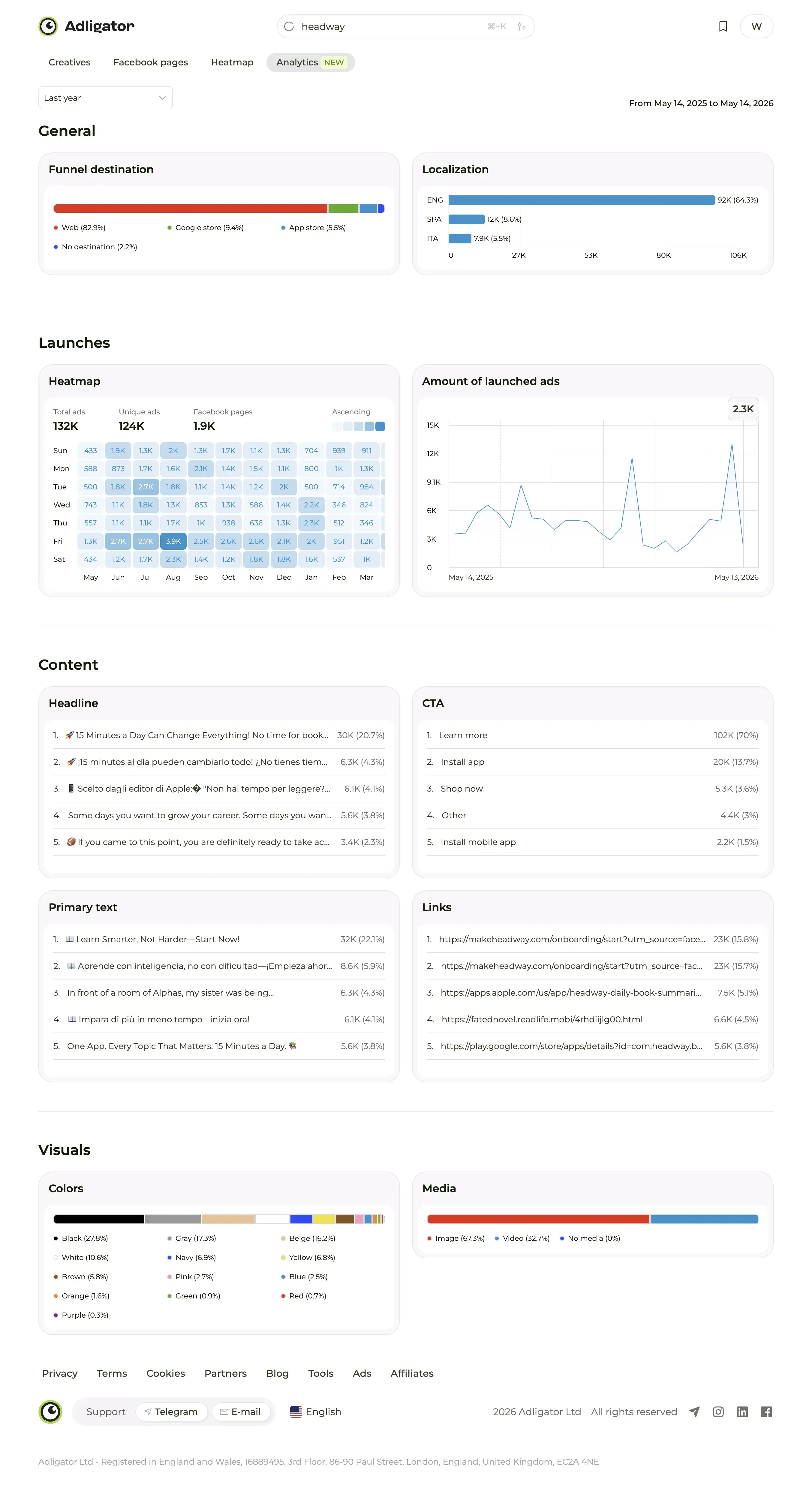
The view becomes one long vertical scroll of panels: a geographic Heatmap, then General, Launches, Content and Visuals. A date-range button at the top (All time by default) rescopes every panel at once.
Panel 1 — Heatmap (geography)
A world map shaded by ad volume, with a Country / Number of ads table beside it. It answers "where does this advertiser actually run?"
The table is the part to trust: the map tiles currently carry a provider watermark, so it is not a screenshot you want in a deck. The numbers next to it are fine.
Panel 2 — General
Two cards.
- Funnel destination — where the ads send people: Web, App store, Google store or No destination, with percentages. A quick read of "is this brand driving to a site or to an install?" A brand at Web 100% is running commerce or lead-gen; heavy App-store share means a mobile product.
- Localization — ad-copy languages with counts and percentages. This is where you find out that a brand you thought of as global is actually 80% one language.
Read together they tell you the shape of the operation: which markets, in which language, pointed at what.
Panel 3 — Launches
- Heatmap — a weekday × month grid of launch volume, with Total ads, Unique ads and Facebook pages counters above it and an Ascending intensity legend. Note that third counter: a tracker can span several of a brand's pages, and this tells you how many.
- Amount of launched ads — a time-series line of new launches across the window.
The grid shows you the weekday pattern; the line shows you the trend. Three reading lenses:
- Volume. A brand averaging several launches a day is in a different operating tier than one shipping a handful a month. Volume maps to creative-team size and budget.
- Cadence. Steady (in-house team with weekly slots), bursty (agency contract with milestone drops), or seasonal (heavy Q4 ramp)?
- Trend. Rising over the last 90 days means scaling. Falling means pulling back, pivoting, or hitting fatigue.
A single tall spike on the line with flat months around it usually means a campaign launch, not a change of strategy — check the date against what you know about the brand before reading anything into it.
Panel 4 — Content
Four ranked lists, each showing the value, how many ads used it, and what share of the library that is:
- Headline — the headlines this brand keeps reusing.
- CTA — the button distribution. If it skews 80% Shop now, the brand is fully transactional; a 50/50 Shop now / Sign up split means they are balancing conversion with list-building.
- Primary text — the body-copy openers they have settled on.
- Links — the destination URLs, ranked. This is the fastest way to see which products or landing pages carry the budget.
This is the panel that surprises most people on first read. If a headline appears in 23% of a brand's ads, that is not a draft — it is a line their copywriter has tested under fire and kept.
For your own creative, this is the single fastest way to see what is battle-tested in a niche.
Panel 5 — Visuals
- Colors — the dominant colour values across the brand's creatives, with proportions. Useful for "what is the design language of this vertical right now?"
- Media — the Image / Video / No media split. A brand that is 60% image has a different production setup than one that is 90% video.
How to read all five together
The mistake new users make is reading each panel as a standalone metric. The value compounds when you read them as one narrative:
"This brand runs almost entirely in one country, sends 100% of traffic to the web, and writes in Spanish. They shipped 26 ads in a single July week and almost nothing since. Their top headline covers 23% of the library and their CTA is Shop now on a fifth of it. The creative is 63% static, in a grey-and-blue palette."
Six sentences. That is a competitor's strategy summarised in a way nobody on your team would have time to derive from staring at individual ads.
When Analytics tells you the wrong thing
- Small library. A tracker on an advertiser with 35 ads will produce noisy percentages. Treat single-digit counts as anecdotes, not patterns.
- Brand changed strategy recently. An All-time view smushes old strategy into new. Always check a recent window alongside lifetime to spot the inflection.
- Multiple pages per brand. The Launches panel tells you how many pages the tracker covers. If a brand splits regionally across pages you do not track, you are seeing part of the picture.
The two recipes Analytics enables
- Compare two competitors — open Analytics on two Trackers, read the same panels side by side, write three sentences.
- The quarterly brand-strategy briefing — write the six-sentence narrative above for each of your top three competitors and circulate it. Five minutes of writing, hours of reading saved for the team.
If you are new to the tab, the fastest way in is to create a Tracker on a brand you already understand — your own, or a known competitor — then walk the panels asking "does this match what I already know?" That is how you calibrate trust in the data before relying on it for brands you do not know.
What's next
Analytics is the reading layer. Collections is the saving layer, and Partnerships — the third tab on the same tracker — is the who layer. The loop between them is where the app earns its keep over time.
