Collections: your private swipe folder, shareable on demand
Save ads to folders, organize by job, share a link with your designer. No screenshots, no Google Drive, no decay when Meta pulls the original ad.
If Trackers are how you watch competitors, Collections are how you keep what you find. They are the second half of Adligator's compounding-value loop — a search engine without a save mechanism is just a research session you lose every Friday.
This article covers how Collections work, the workflows they enable, and the rules that decide whether your folder is still useful three months from now.
What a Collection is
A Collection is a folder of ads you have explicitly chosen to save. Hover any card in the app and a save button appears in its action stack — clicking it opens a small Add to collection picker so you can drop the ad into any existing folder (or start a new one). Collections in the sidebar is where the folders live.
A few first-principles details:
- Saves are permanent. An ad you save stays in your Collection, including the creative file, full copy, run time, GEO, platforms and every parsed field. Even if Meta pulls the original from the public Ad Library a week later, your save is unaffected.
- Saves are per-account, not per-tracker. Save an ad from a one-off search or from inside a Tracker view — both land in Collections. The Tracker that surfaced the ad does not "own" the save.
- Folders are flat. No nested sub-folders. One folder is one job.
The full Collections workflow, end to end
The recipe below walks the loop from a fresh search result to a shareable folder. The canonical example: an iGaming folder built from a Plinko search.
Why "Plinko" and not "iGaming"? The topic word "iGaming" returns only ads that literally contain that meta-term — a tiny, unrepresentative slice of B2B platform ads. Real iGaming creative talks about mechanics (Plinko, Aviator, Sweet Bonanza), brands (Stake, Roobet) and offer slang (free spins). Always drive Adligator with a real vertical keyword. The folder name can stay vertical-level.
Step 1 — Save a keeper from the results
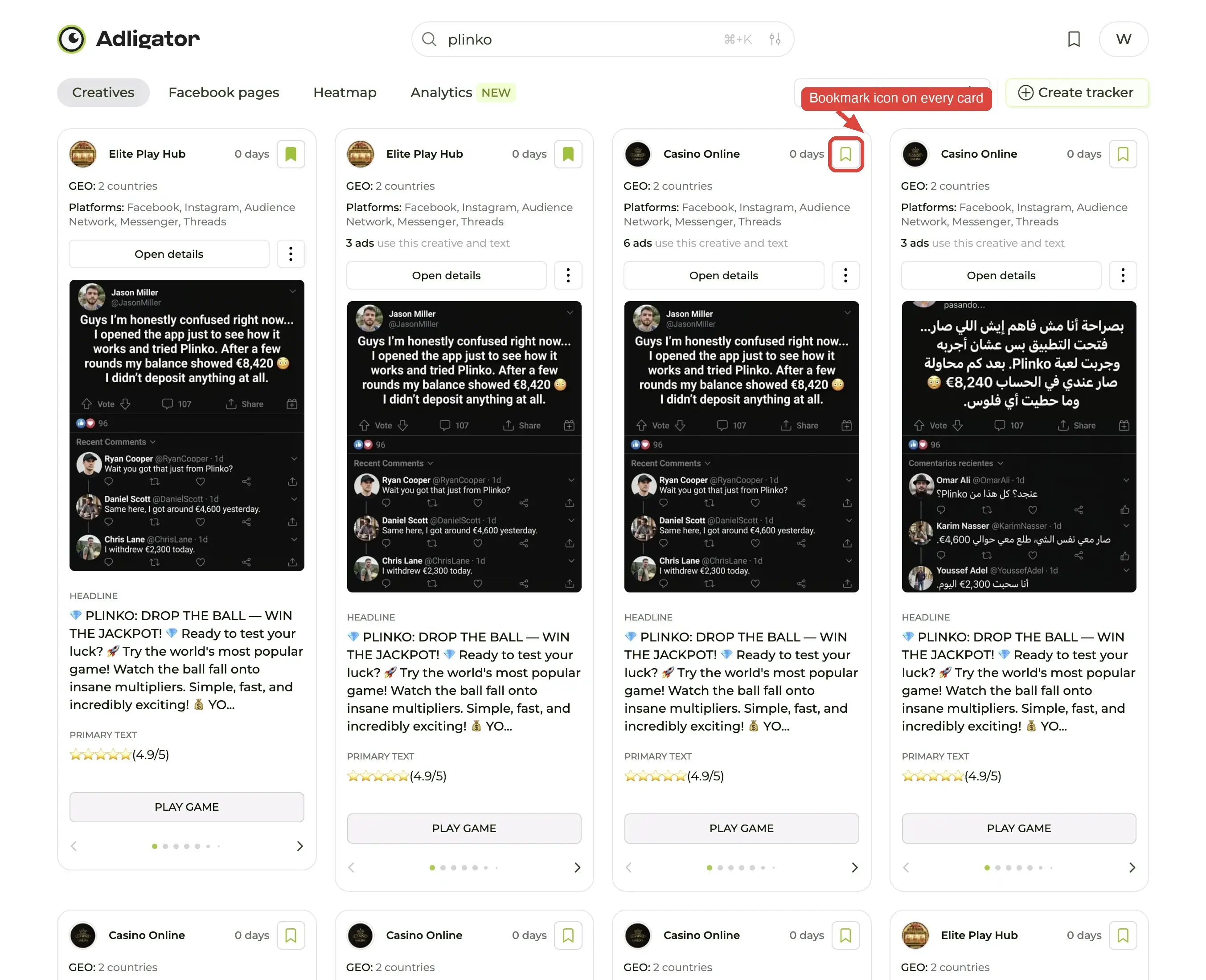
Run your search and hover any card. Four round buttons appear at the card's top-left; the second one — the folder icon — is save to a collection. One click opens the picker.
Step 2 — Open the picker
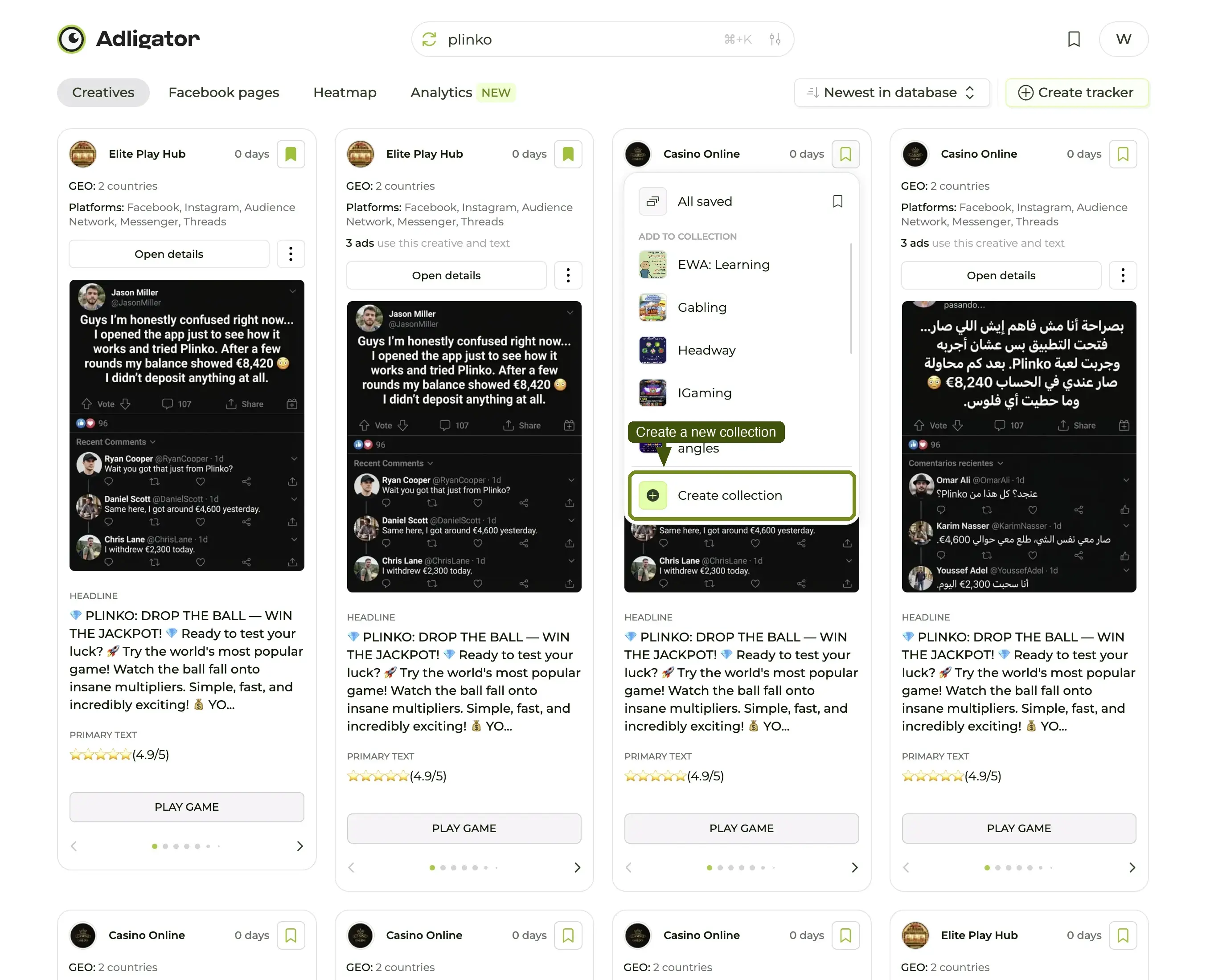
The picker lists All saved at the top (the master view every saved ad lands in), then ADD TO COLLECTION with a row per folder, and Create collection at the bottom.
Step 3 — Or start a new folder
To pin this card into a job-named folder that does not exist yet, click Create collection. The New collection modal asks for a name, an optional description, an optional topic tag and a Private toggle.
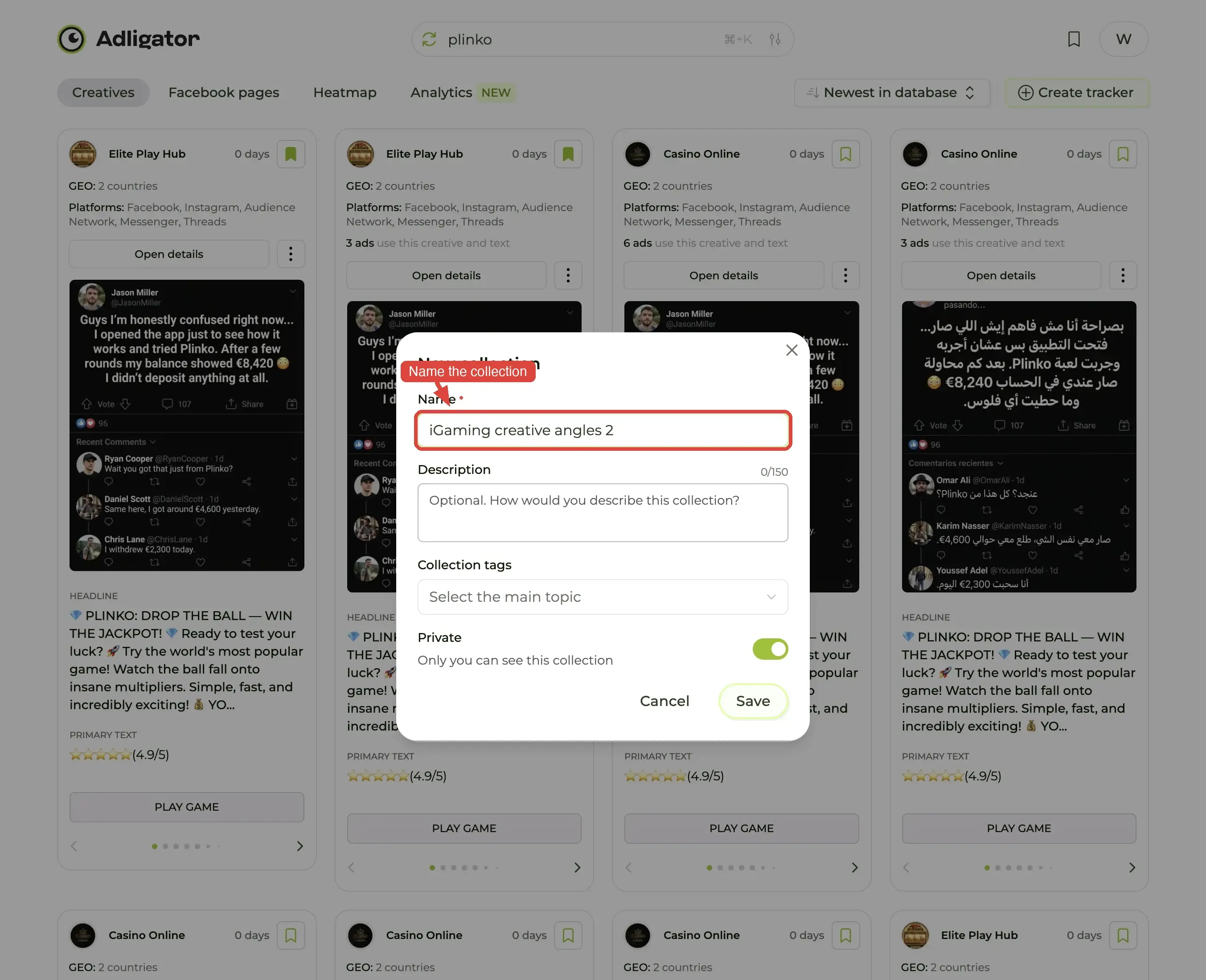
Type a job-named title — "Hooks that survived 60+ days" beats "iGaming saves" every time — then click Save. The modal closes and the folder appears in the picker.
Step 4 — Drop the card into the folder
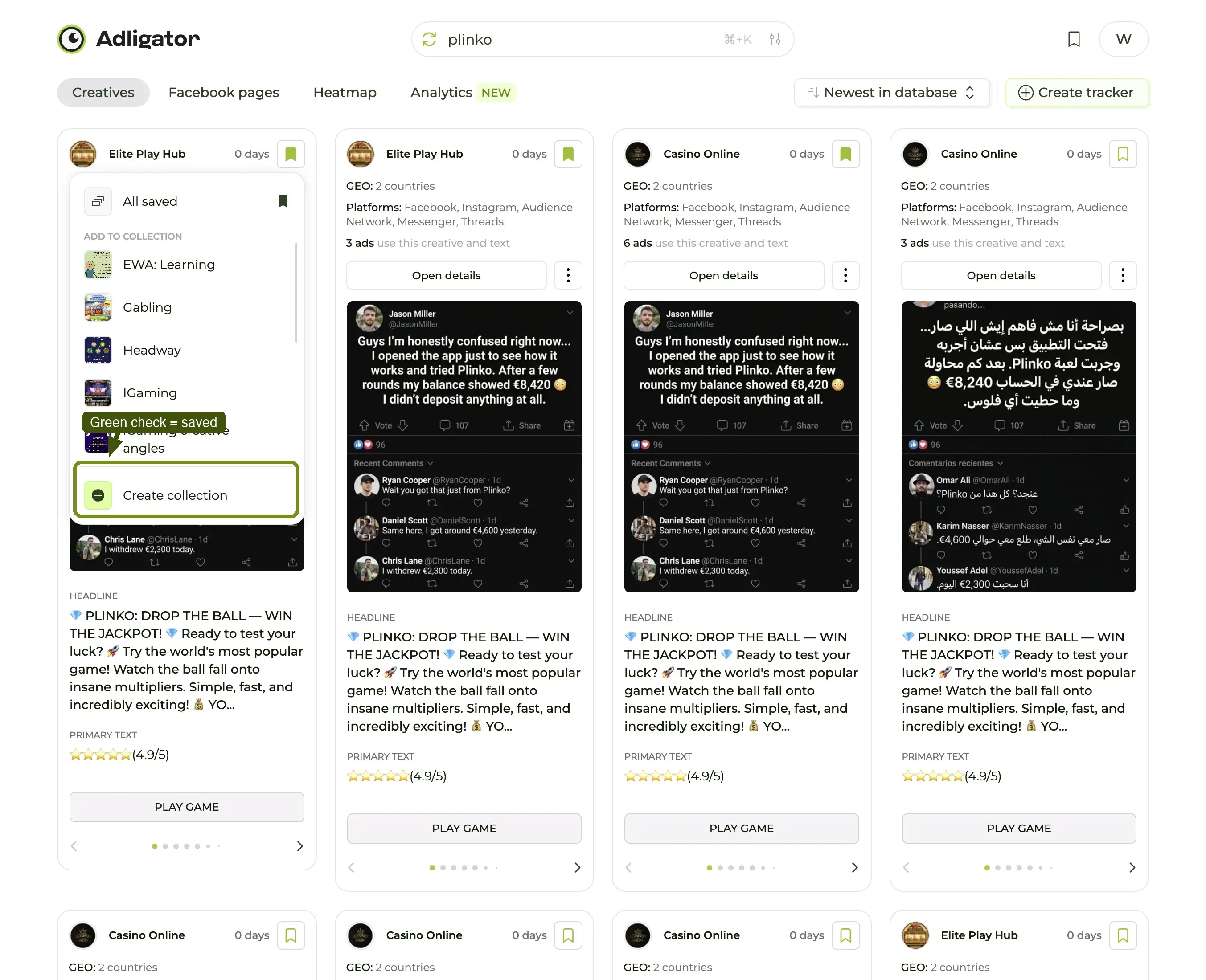
Click the folder row to add the current card; a green check confirms the save. The picker stays open, so you can move the ad between folders or close it and go straight to the next card. Once the folder exists, saving is one click per ad.
Step 5 — Open the folder from Collections
Click Collections in the sidebar. Every folder shows cover thumbnails, its name, a Private pill if private, and an N saved count.
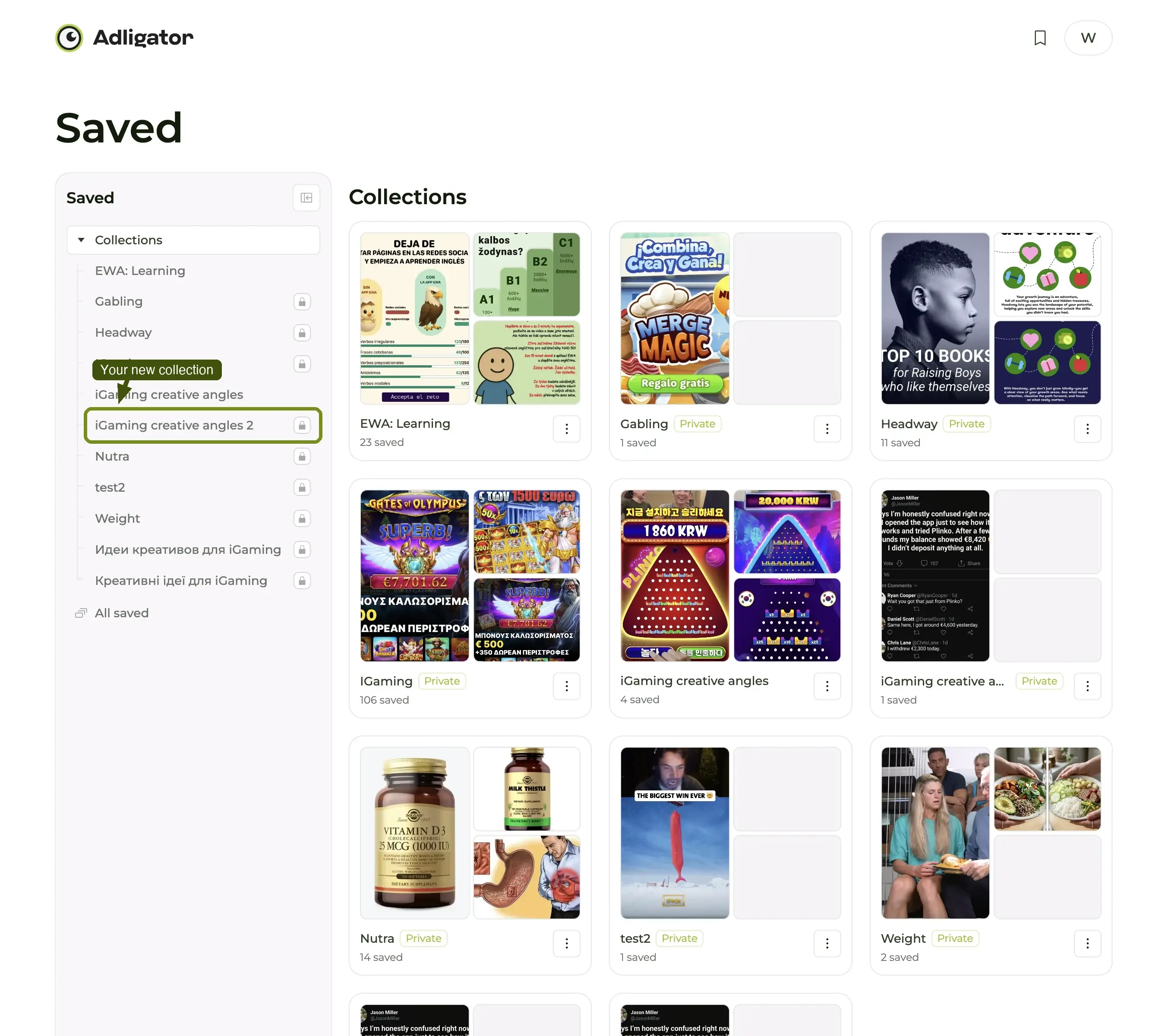
Click a folder to open it — full-size cards, exactly like the search grid, with the same pagination at the bottom.
Step 6 — Share it, or export it
Inside a folder, the header carries three controls: Download CSV, Share, and a ⋮ menu.
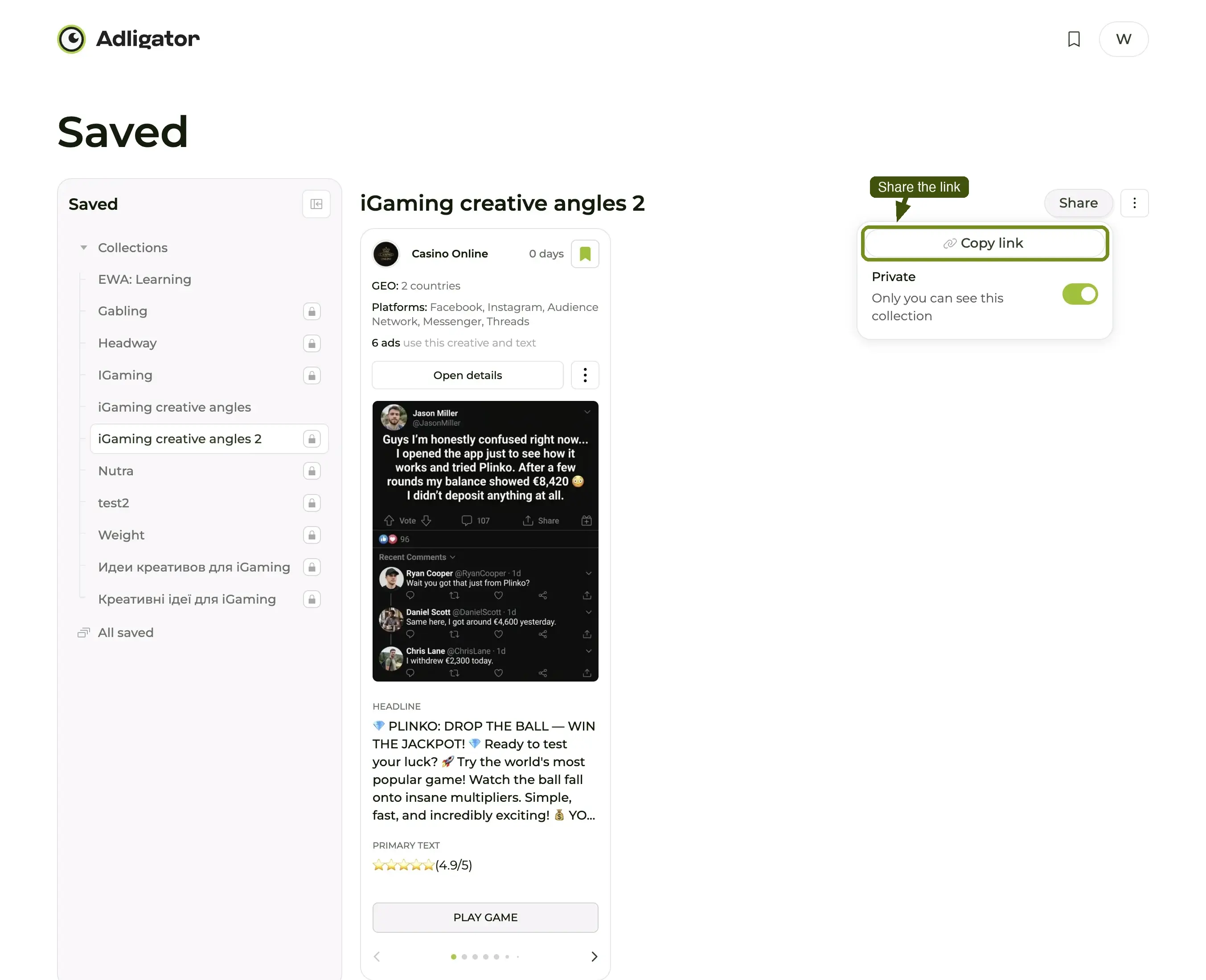
- Share opens a popover with Copy link and a Private toggle. Folders are Private by default — toggle it off to make the link viewable by anyone with it, then copy and paste into Slack, Notion or the brief doc.
- Download CSV exports the folder as a spreadsheet. This is the one to reach for when someone wants the data rather than the visuals — a media buyer building a competitive matrix, or an analyst who wants the landing pages in a column.
- The ⋮ menu holds Edit collection (same fields as the create modal) and Delete collection. Deleting a folder does not delete the ads; they stay in All saved.
The recipient of a share link does not need an Adligator account. They see the same card layout you do and can play videos and browse carousels.
That is the full loop: search → save → folder → open → share. A handful of clicks the first time; one click per save once the folder exists.
Folder hygiene — the rules that decide whether the file lives or dies
This is where Collections becomes valuable instead of cluttered.
Rule 1 — Name folders by job, not by brand
The mistake: naming a folder "SHEIN ads" or "Q3 saves". Both describe what's inside the folder, not why you'd open it.
The fix: name folders by the job-to-be-done. Examples:
- "Hooks that survived 60+ days"
- "UGC face-to-camera, ecom"
- "Single-country carousels — UK"
- "Headlines with numbers in the first 4 words"
- "Video ads with text overlay"
Every folder name should answer "next time I open this, what am I looking for?" If it doesn't, rename it.
Rule 2 — One folder per brief
When you're briefing a designer for a specific campaign, make a folder named after the brief, drag in 8-12 ads that directly inform it, and share that folder. Don't share your full default Collection.
Briefs are short-lived. Build the folder, brief it, and once the campaign ships, either delete the folder or archive it under a "Past briefs" label.
Rule 3 — Save with intent
The discipline that determines whether your file teaches anything: save only what teaches. Aim for 5-15 saves per query, each carrying a distinct lesson.
If you find yourself saving 30 from one brand, you are saving the brand (use a Tracker for that), not the patterns.
Rule 4 — Prune quarterly
Open every folder. Anything older than 90 days that didn't directly inform a campaign: archive or delete. Old references in a swipe file are worse than no references because they distort taste.
Share patterns
Step 6 covers the mechanics of sharing — the patterns that actually pay off:
- Designer briefing. Brief doc + one Collection link. The folder is the entire reference library.
- Founder review. "Here's what our top three competitors are doing this quarter" → three Collection links.
- Cross-team teach-ins. "What good vertical creative looks like" → one Collection link, used in the next team meeting.
A Collection link is a live snapshot of the folder. If you add or remove ads, the recipient's view updates in place — there's no "publish version" vs "draft version" distinction. That makes Collections great for ongoing briefs and bad for "freeze the references at this moment in time" use cases.
What Collections are not
Three things Collections deliberately don't do:
- They don't auto-save from Trackers. A Tracker says "watch this brand"; a Collection says "I want to remember this specific ad". The deliberate save step is what makes the folder valuable — auto-saving every tracked ad would turn every folder into noise.
- They don't replace Trackers. Saving 50 of a brand's ads to a folder is not the same as tracking the brand. Trackers tell you what's new; Collections preserve what you've decided to keep.
- They don't have analytics. A Collection is a reference library, not a dashboard. The Analytics tab on a Tracker is for pattern reading; Collections are for browsing keepers. (If you want the folder as data rather than pictures, that is what Download CSV is for.)
A realistic Collections setup
What good looks like for a media buyer running ecom campaigns:
📁 Hooks — first 8 words (12 ads)
📁 UGC face-to-camera (10 ads)
📁 Carousel slide-1 hooks (8 ads)
📁 Before/after structure (6 ads)
📁 DCO references (15 ads)
📁 IG Reels vertical-first (9 ads)
📁 Single-country UK winners (7 ads)
📁 Brief — Spring video campaign (10 ads)
Eight folders, ~80 ads, organized by what the designer will be briefing. Refresh the contents quarterly. Share a folder when needed.
Common mistakes
- Saving to the default folder forever. The default Collection is a scratchpad. Rename it, or split into job-named folders. Don't share the scratchpad.
- Saving the same ad to three folders. Pick the dominant lesson; save once. If an ad teaches multiple lessons, the most transferable lesson is the one that should own it.
- Confusing Collections with Trackers. Saving an ad does not subscribe you to that brand's new launches. Trackers do that.
- Letting a folder cross 100 ads. If a folder has more than 100, it is two folders pretending to be one.
What's next
Saving is one half. Watching is the other. The full competitive-intel loop runs Trackers → Analytics → Collections, where:
- Trackers surface what's new.
- Analytics surface what the patterns mean.
- Collections preserve what you decided to keep.
The Build a swipe file how-to walks the workflow end-to-end if you want a step-by-step that ties all three together.
