Reading an Adligator creative card: every signal explained
A result card is deliberately spare — creative, format, days running, and four actions on hover. Here is what each element means, and what waits for you in the detail drawer.
An Adligator card is deliberately spare. It shows you the creative and two numbers, and it keeps everything else one click away in the detail drawer. That trade is the whole design: the grid is optimised for scanning, the drawer for reading. This article is the decoder ring for both.
Everything below applies to Ad Search. The same card is reused on Tracker views and inside Collections, so what you learn here transfers.
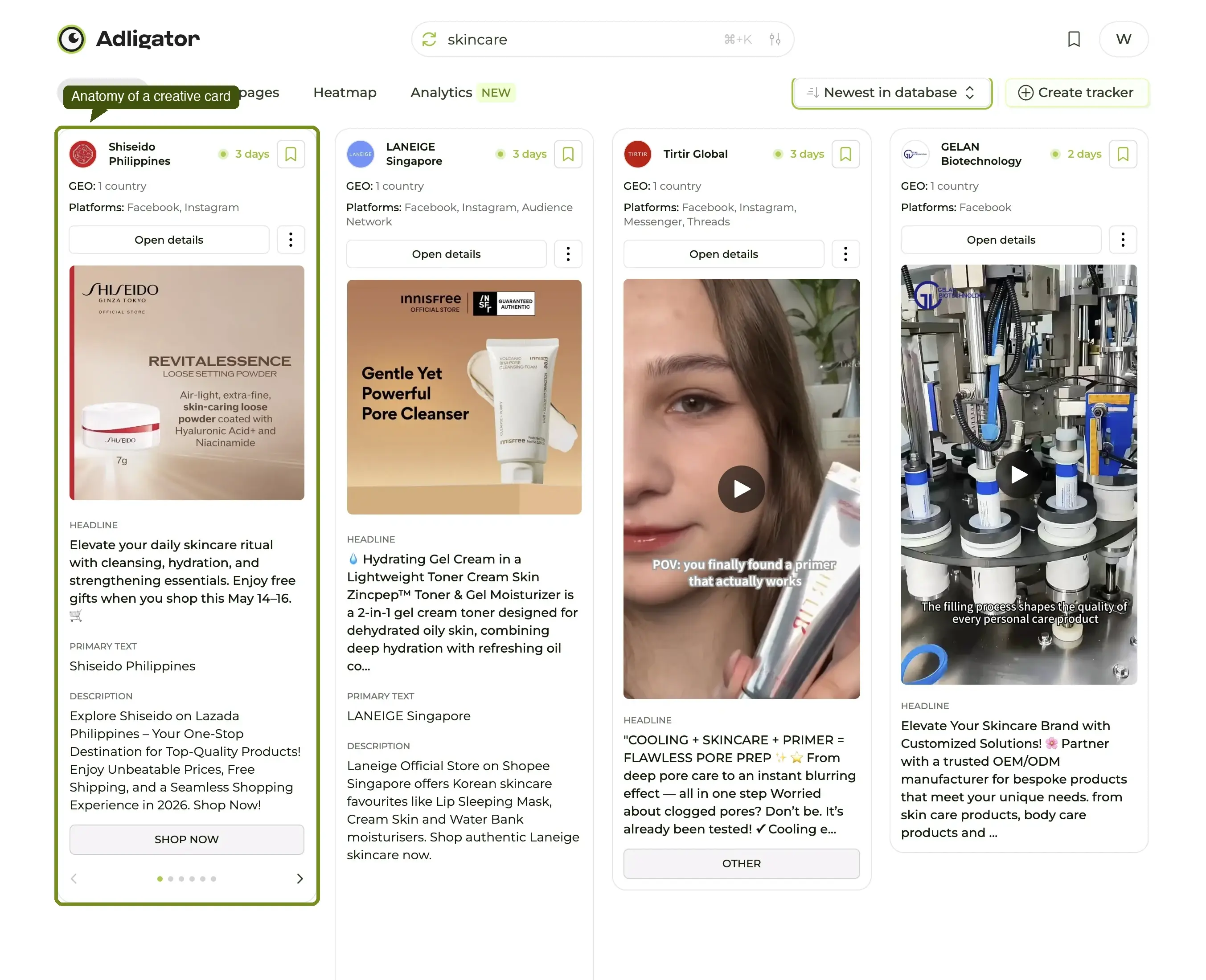
The card, at a glance
Five things, in the order you should read them:
- The creative itself — the ad's image or video poster. Video autoplays on hover; a carousel shows its first card.
- Video length (top-right, video only) — a 6-second hook and a 3-minute VSL are entirely different bets.
- Format badge (bottom-left) — Carousel, DPA, DCO and friends. Nothing shown means a plain image.
- Days running + status dot (bottom-right) — the number that matters most.
- Hover actions (top-left, on hover) — download, save to a Collection, share, open externally.
1. The creative itself — the fastest filter you have
You are looking at the thing the customer saw. Before any metadata, ask the obvious question: does this look like it was made by someone who knows what they are doing? Text-heavy static in a video-first vertical, or a stock-photo hero in a UGC vertical, usually tells you the advertiser is testing rather than scaling.
Hovering plays video ads in place, which means you can triage a whole row of creatives without opening any of them.
2. Video length — production tier in one number
Only video ads carry it. It is a surprisingly good proxy for how the brand is buying:
- Under 10 seconds — hook-first, feed-native, usually cheap to produce and rotated fast.
- 20–45 seconds — the workhorse range for DTC and app installs.
- Over 90 seconds — a VSL or a long-form testimonial. Expensive to make, so a brand that keeps one alive is almost certainly getting paid.
3. Format badge — what kind of ad this is
Overlaid on the bottom-left of the creative:
- Carousel — multi-card, browsable in the drawer with the arrows.
- DPA — Dynamic Product Ads, driven by a product catalogue.
- DCO — Dynamic Creative Optimization, auto-combined variants.
- Nothing shown — a plain static image.
The format choice is itself a signal. A brand running mostly video usually has in-house production or an editor on retainer. A brand running mostly DCO is delegating creative selection to Meta's algorithm — common at scale, rare for small advertisers.
4. Days running + status dot — the single most important number
The badge in the bottom-right reads "1 d", "47 d", "868 d". Beside it sits a small dot: coloured means the ad is still live, grey means Meta has stopped serving it.
Why it matters: long-running ads are the strongest signal an ad library can ever give you. If a brand has paid to keep a creative live for 60+ days, they are almost certainly making money on it. A 4-day ad is a test; an 868-day ad is a confirmed winner.
Sorting the grid by Longest running pushes those to the top. That single sort change is the difference between "what just launched" and "what is actually working."
5. Hover actions — four things you can do without leaving the grid
Hover any card and four round buttons appear at its top-left:
- Download — saves the original creative file at full resolution, with no Adligator chrome on it. Images come down as
.jpg/.png, video as.mp4. - Save to a Collection — opens the folder picker. See Collections.
- Share — copies a link to the ad.
- Open externally — opens the ad outside the drawer.
Because these live on hover, building a swipe file while you scroll is a single-finger workflow.
Everything else: the detail drawer
Click anywhere on the card and a panel slides in from the right. It does not change the URL, so the × puts you straight back into the grid where you were.
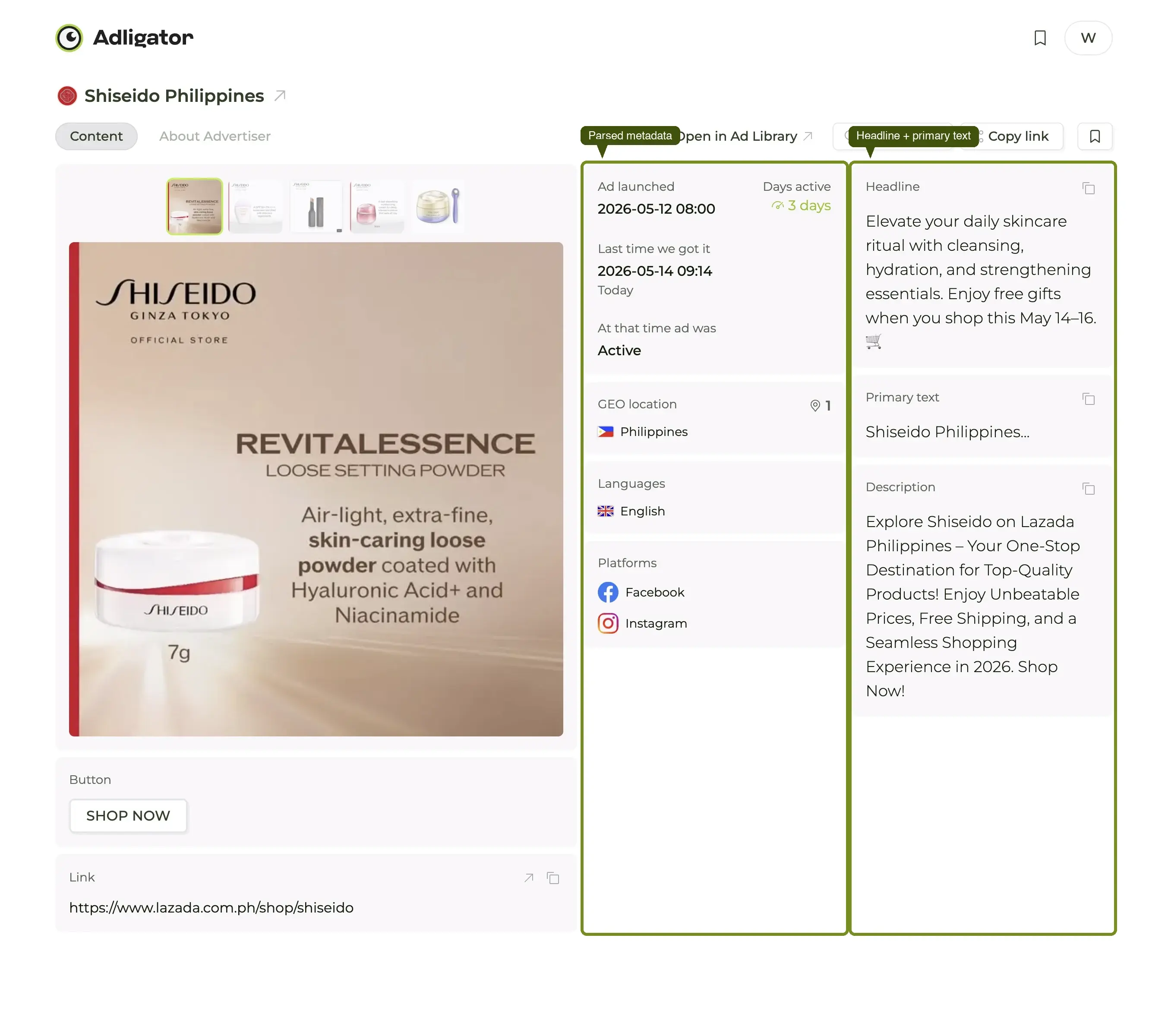
The drawer has two zones.
The creative and the copy
At the top: the advertiser's page name and avatar, the creative at full size (carousels get ‹ › arrows and dots), then the headline and body copy with a Show More expander for long text.
Two small buttons sit under the copy:
- Copy — puts the text on your clipboard so you can paste a winning hook straight into a brief or swipe file.
- Translate — appears when the ad's language differs from your interface language. One click renders it in yours, another click reverts. This is what makes researching foreign markets practical: read the original, then read what it actually says.
The parsed metadata
Underneath sits the block that most users notice on day one and remember forever:
| Field | What it tells you |
|---|---|
| ID | The Meta ad id — use it to cross-check the original in Meta's Ad Library. |
| Type | The media type (Carousel, Video, Image, DPA…). |
| Status | Time running in days, plus Active or Inactive. |
| Period | First-seen and last-seen dates. |
| CTA | The button label on the ad — Shop now, Learn more, Sign up… |
| Landing Page Ad target link | Where the ad actually sends people. |
| GEO | The countries the campaign targets. |
Every one of these is a field you would otherwise have hunted for by hand inside Meta's Ad Library.
Reading order, summarised
The five-second scan, for any card:
- The creative — does this look professionally made?
- Days running — winner or test?
- Format and length — what kind of production is this?
- If two of those line up with what you are researching, click it.
- In the drawer: the first line of the body copy — what is the hook?
If they do not line up, scroll past. The grid is built for exactly that.
Once you are fluent at the card, the next leap is fluent filtering — narrowing the grid before you start reading at all. The filters deep dive is the reference for every knob in the app, and the glossary is the lookup for any term you have not seen before.
