How to filter Facebook ads by country (and isolate single-GEO winners)
GEO + the "To" filter combo turns a noisy global grid into a clean list of ads tailored to one specific market. Here is the exact recipe.
Filtering by country is the highest-leverage filter in Adligator. A brand running 200 globally-targeted ads might be running only 12 that are tailored to your specific market — and those 12 are the ones whose copy, format, and angles actually map to your audience. This recipe walks through the two-filter combo that gets you there.
The 30-second version
- Open Creatives, type a brand or keyword, hit Enter.
- Click Add filter in the toolbar and pick GEO.
- GEO → pick your target country.
- To → set to
1if you want country-exclusive ads only. - Apply.
That's it. Everything below explains when to use each option and what the results actually mean.
Step 1 — Start with a brand or vertical search
Country filtering works on top of whatever query you started with. Two common starting points:
- Brand-scoped: pick an FB page from autocomplete (
Ridge Wallet,SHEIN, etc.). The grid loads that one advertiser's ads. - Vertical-scoped: type a phrase (
weight loss patches,ai resume builder) and run a phrase search. The grid loads every ad whose copy matches.
Both work with the GEO + To combo below — the brand path gives you a tighter, cleaner result; the vertical path is what you want when you do not yet know which advertisers matter in a market.
Step 2 — Open the GEO filter
Click Add filter in the toolbar and choose GEO from the menu. A chip appears in the toolbar and the GEO panel opens beside the menu. Everything this recipe needs is in that one panel: the country list, and the Geo coverage cap sitting right above it.
Step 3 — Set GEO
GEO is a multi-select dropdown of every country Meta operates in.
- Click the GEO input — the dropdown opens with the most-searched countries at the top (Ukraine, Poland, United States, United Kingdom, Germany, …).
- Type in the small
Enter valuesearch to filter the list. The search is starts-with and case-insensitive — typingukmatchesUkraine, notUnited Kingdom. Typeunitedto find both UK variants. - Click a country to add it. It appears as a pill inside the GEO input. Click the
×on a pill to remove.
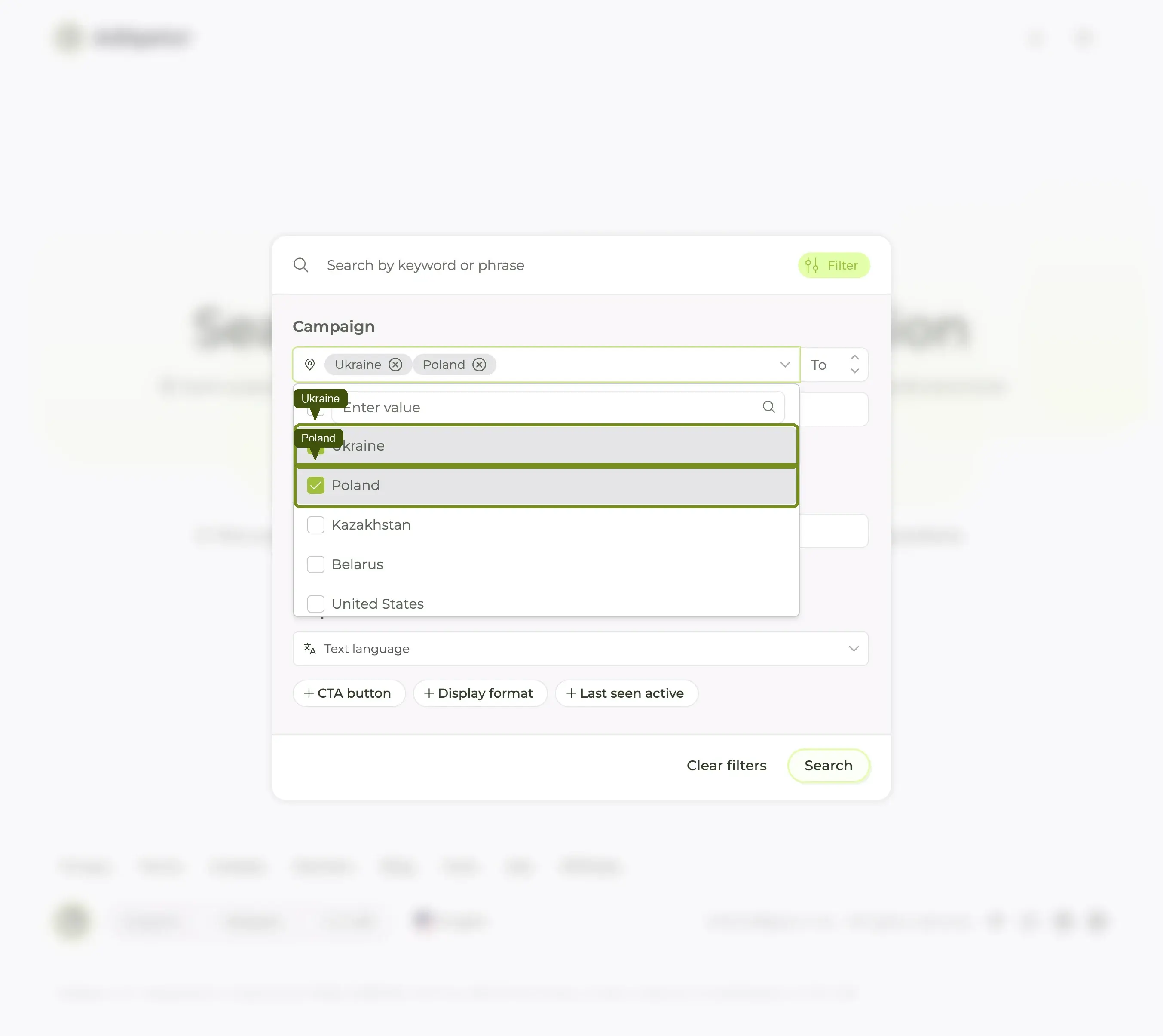
Three things are stacked in this panel, top to bottom:
- Search countries — type here rather than scrolling. The list is virtualised, so a country that is off-screen genuinely is not in the page yet.
- Geo coverage — the numeric cap, covered in the next step.
- Continents, then Countries — tick a whole region (Europe, Asia, Africa, North America, South America, Australia) or individual countries below.
You can pick multiple countries. Picking three or more countries widens the grid — useful when you want a regional view ("DACH" = DE + AT + CH), less useful when you want a single-market focus.
Step 4 — Decide what "by country" actually means for your job
Here is where most users stop too early. GEO alone returns every ad served in that country — which includes ads also being served in 20 other countries. For most research jobs that is too noisy. You usually want one of two specific things:
Variant A: "Ads served in country X (regardless of where else)"
Use GEO alone. Leave the To filter blank. The grid returns the brand's full footprint inside your market, including pan-regional and global campaigns. Useful for: "what do US consumers see when this brand advertises?"
Variant B: "Ads tailored specifically to country X"
Use GEO + To = 1. The grid returns only ads whose entire targeting is that single country. These are the brand's market-specific creatives — bespoke copy, local cultural references, currency-appropriate offers, translation if relevant. Useful for: "what do they think actually works in my market?"
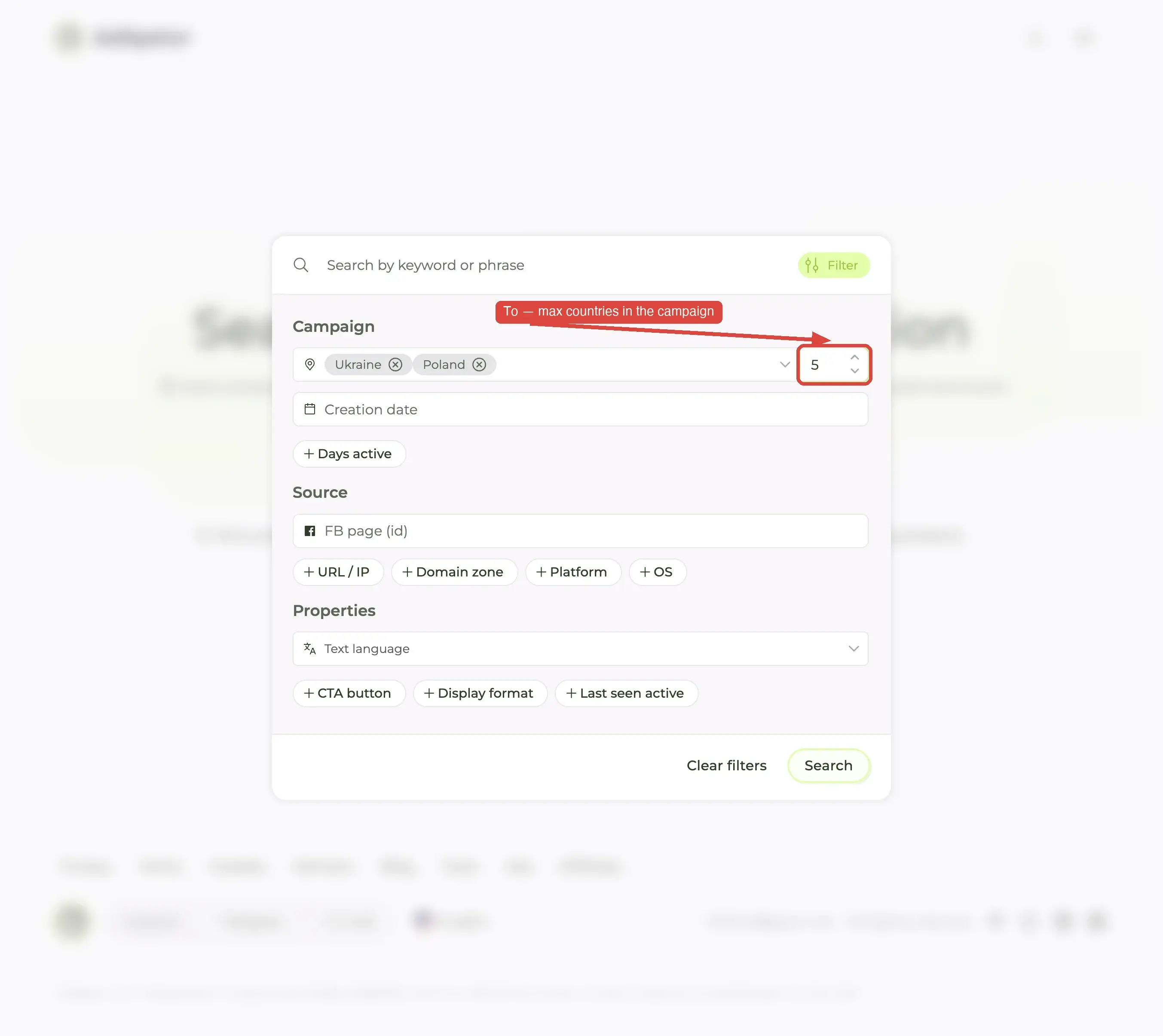
Variant C: "Single-market or near-single-market"
Use GEO + To = 2 or To = 3. Catches ads tailored to a tight regional group (e.g. US+CA, DE+AT+CH) without catching globalized campaigns. Useful for: regional teams running shared creative across neighbours.
Step 5 — Stack a sort on top
The single best follow-up to a GEO+To filter is to change the sort. Change the sort dropdown (top-right of the grid) from Newest in database to Longest running. The grid re-ranks by descending Days active — the country-tailored ads at the top are the brand's proven, country-specific winners.
This is the highest-signal grid the app can produce: single-market, long-running ads. They are the brand telling you "this creative passes the cultural and performance filter of country X" — exactly what you want to copy or steal from.
Step 6 — Save the search
If you intend to revisit this view (and you should, every week or two), press Save Search in the top-right and name it. The whole query — keyword, GEO, Geo coverage, sort — gets pinned to the sidebar under Saved searches, and one click reloads it.
(If what you actually want to watch is a brand in that market rather than the query, create a Tracker on their page instead, and read its Analytics tab for launch cadence and copy patterns.)
When NOT to use the GEO filter
Two cases:
- Cross-market trend research. If your job is "what is everyone in this vertical running globally?", removing GEO entirely is the right move. The grid widens, you see more diversity.
- Brand-name verification. Sometimes a brand uses a different Page in different markets ("BrandName US", "BrandName UK"). Filtering by GEO on the brand's main page may hide their market-specific page. The FB Pages tab is the better tool there.
Common mistakes
- Picking countries the brand does not actually advertise in. The grid silently returns zero results — there is no error message. If you get nothing back, drop the To filter first, then GEO, to find where the brand actually is.
- Using GEO+To=1 on a brand-scoped phrase search. Brand-scoped + To=1 is fine. Vertical phrase + To=1 returns very few results because phrase searches already match niche-wide; layering a single-country exclusivity on top is usually too tight.
- Forgetting to re-sort. GEO does not change the default sort. Without a sort change you are still looking at the newest in the database, not the proven winners.
What's next
Country is one of three filters that most marketers use weekly. The other two are Days active (see find long-running winners) and Media format (see find ads by format). Combine all three and you have a 4-filter recipe that reliably surfaces the top 5–10 ads in any vertical, in any market, in any format — in under 60 seconds.
