The Pages tab: every advertiser at a glance
Pages lists Facebook pages, not individual ads. Use it for brand-name disambiguation, vertical sweeps, and confirming a competitor's real advertising surface.
If Ad Search is the front door, FB Pages is the directory. It is the tab you open before Ad Results — when you do not yet know which page a brand actually advertises from. It is also the tab to open when you want a vertical-wide view of who is advertising in a niche, instead of what they are running.
This article covers what the Pages tab is good for, what its columns mean (a surprising number of users misread these), and the three workflows that use it best.
What the Pages tab actually is
The FB Pages tab is a list of Facebook pages Adligator has indexed. Each row contains:
- Page avatar + name — the visible identity.
- Verified badge (if applicable) — Meta's blue tick.
- Total — every ad Adligator has ever indexed for the page, lifetime.
- Active — currently active ads on the page.
- Rejected — Meta-rejected ads on the page, lifetime.
- A green Show ads button that jumps you into a brand-scoped Ad Results grid.
The list is filterable by the same eleven filters as Ad Results and searchable by page name or phrase. Reach it by clicking FB Pages in the tab strip, or by adding &mode=fb-pages to a results URL. The first thing to know about the columns: they describe the page's whole library, not the slice that matches your search.
The most-misread thing in the entire app
Read this carefully because it trips up almost everyone in their first week.
When you search the Pages tab with the keyword skincare and a result row shows Total: 412, Active: 38, that does not mean the page has run 412 skincare ads. It means:
- The page matched your
skincarekeyword (somewhere in their ad copy or page name). - The Total/Active/Rejected columns then describe the page's entire library, regardless of keyword.
So a page with 412 total ads might have 12 skincare ads and 400 ads about something else. The list is keyword-filtered; the columns are page-lifetime.
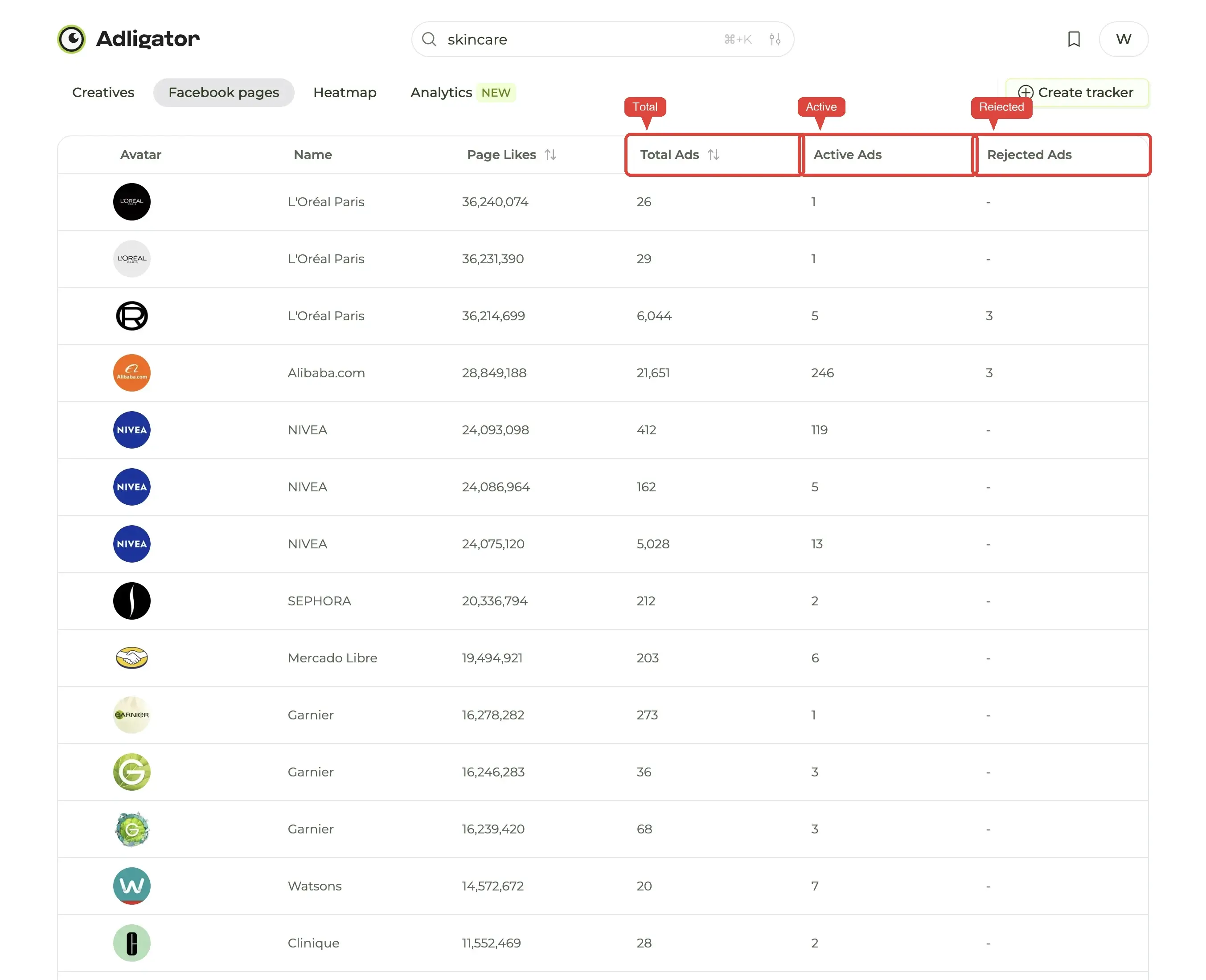
If you need keyword-scoped ad counts, you have to open the page and apply the keyword on the Ad Results grid. There is no "ads matching this keyword on this page" column — that's a per-search query, not a per-page metric.
A second caveat, added 2026-09-04: Active Ads and Rejected Ads are frequently blank — many rows render - or N/A even when the page clearly has live ads. Treat those two columns as a bonus when they are populated, never as the basis for a claim. Page Likes and Total Ads are the two columns you can rely on, and the only two that are sortable.
Workflow 1 — Brand disambiguation
The fastest reason to open Pages: figuring out which page actually runs the ads when a brand name collides.
Example: you search Ridge on Creatives and get 300 ads — some wallets, some coffee, some financial advisors, all using the word "Ridge" somewhere. Frustrating.
Switch to Pages, type Ridge, and the list shows:
Ridge Wallet(verified, Total 1,247, Active 89)Ridge Coffee Co.(Total 12, Active 3)Ridge Financial Advisors(Total 2, Active 0)
One row obviously matches the brand you want. Press Show ads, land in Ad Results scoped to that page, and you have a clean grid.
The same pattern works for any ambiguous brand name (Apple, Coach, Hugo, Echo, Bolt, …). 30 seconds in Pages saves 10 minutes of filtering in Creatives.
Workflow 2 — Vertical sweeps
The second high-value use: finding the highest-volume advertisers in a vertical without reading individual ads first.
- Open Pages.
- Type a vertical keyword (
weight loss,coffee subscription,ai resume). - Click the Total Ads column header to sort descending — only Page Likes and Total Ads are sortable.
- Scan the Active Ads column to see which of those high-volume brands are still shipping right now.
The top of the list is the highest-volume advertisers in the niche (by lifetime ad count). The Active Ads column tells you which of them are currently in market. These are usually the brands worth pinning as Trackers — they ship enough creative that watching them produces real signal.
If you don't recognize half the names on the page-1 list, that's not a bug — it's the point of the workflow. Most verticals are dominated by 5-10 brands you've never heard of (white-label, affiliate-driven, niche DTC). Pages surfaces them in under a minute.
Workflow 3 — Sanity-checking "they have no ads"
When a competitor seems to "have no ads", three things might actually be true:
- They have no Page.
- They have a Page but no active ads.
- They have a Page with active ads under a name you haven't searched.
Pages disambiguates all three quickly:
- Type the brand. If nothing shows up, they have no indexed Page (rare, but it happens for very new brands).
- If a Page shows up with Active = 0, they exist but are quiet right now. Their Total column tells you how active they were historically.
- If multiple rows show up, the brand has region-split or sub-brand Pages. Each is its own advertising surface; pick the right one or track all of them.
Workflow 4 — Catch copycats stealing your hooks (or your creative)
This is the workflow most teams don't realize they have. If you're the one running ads — not just researching them — Pages is also your copycat detector.
Pick a phrase you actually own: a hook you wrote, a tagline, a specific product-claim angle, a brand-tied word combination unique to your campaigns. Type it into Pages.
What you'll see:
- Your own Page in the list (you wrote the hook; you appear).
- Anyone else using the same phrase in their ad copy.
Three categories of "anyone else" — and they each warrant a different response:
- Independent convergence. A competitor in the same niche arrived at a similar angle without seeing yours. Same vertical → similar pain points → similar copy is normal. No action; just note that the angle is no longer differentiated.
- Hook copying. A competitor is running the same hook, headline structure, or framing but with their own creative assets. Annoying, not actionable on Meta's side — language isn't copyrightable. The right move is to refresh your angle faster than they can copy it.
- Creative theft. A competitor is running your actual image or video, lifted from your ads or your website. This is actionable. Report the ad through Meta's intellectual-property report flow (open the offending ad → ⋯ menu → Report ad → "Intellectual property"). Provide a link to your original creative as proof.
When Meta agrees the asset is yours, the offending ad is removed. Repeat violations escalate — Meta can disable the ad account, and for advertisers with custom audiences, lookalikes, and a Pixel that's been training for years, losing the account is genuinely expensive. That cost is the deterrent.
A small habit pays off here: search your top three hooks on Pages once a week. The check takes a minute and catches both the cheap copycats and the rare cases where someone has lifted your creative outright.
The Rejected column — a niche but useful signal
The third column is Rejected — Meta-disallowed ads on the page, lifetime. It is the most-ignored column and one of the most strategically interesting.
A high Rejected count (relative to Total) tells you the page operates near Meta's policy lines. That's common for:
- Health and wellness brands making borderline claims.
- Crypto and finance brands pushing edge promotions.
- Gambling and gaming verticals.
- "Personal" / lifestyle brands testing aggressive copy.
If you're researching a heavily-regulated vertical, a page with 0 rejections is either a careful operator or a brand that hasn't been tested by Meta enforcement yet. A page with 200+ rejections has been tested — and the rejected ads themselves (visible by filtering for Inactive on that page) can be a teach of where the policy lines actually are.
Filters on the Pages tab
All 13 standard filters work here. The most useful ones:
- GEO — restrict to pages running ads in a specific country. Combine with a phrase search for "who advertises in niche in country".
- Last seen active — restrict to pages with ads seen active recently. Filters out long-dormant pages.
- Language — language-specific page lists, useful for non-English markets.
The full filter reference is in the filters deep dive.
When Pages is the wrong tab
Two cases where Creatives is faster:
- You know the page already. If you know the exact Facebook page name and just want the ads, skip Pages and search the page directly from Creatives autocomplete. One step, not two.
- You're hunting for a specific ad. Pages doesn't help — it doesn't show ads at all. Go to Creatives, filter, scroll.
Pages earns its keep when the question is "which advertiser?", not "which ad?".
The handoff to Trackers
The natural follow-up after a Pages session is a Tracker. Once you've shortlisted 3-5 advertisers in a vertical, save each one as a Tracker so the next time you open Adligator, you have a feed instead of a search session. The Pages tab is great for the first sweep; Trackers are how you keep the relationship going week after week.
What's next
Pages handles the "who" question. Filters handle the "what" question. The filters deep dive is the next stop if you want the complete reference on the 13 filter options. Or, if you came here to compare two specific brands, the compare-two-competitors recipe walks the side-by-side workflow end to end.
